

Help Centre
Massupdate function
With Massupdate function you can change intervals, prices or even content of a subscription for multiple customers at once.
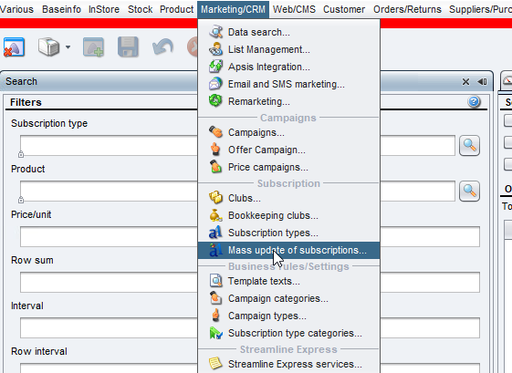
Search function
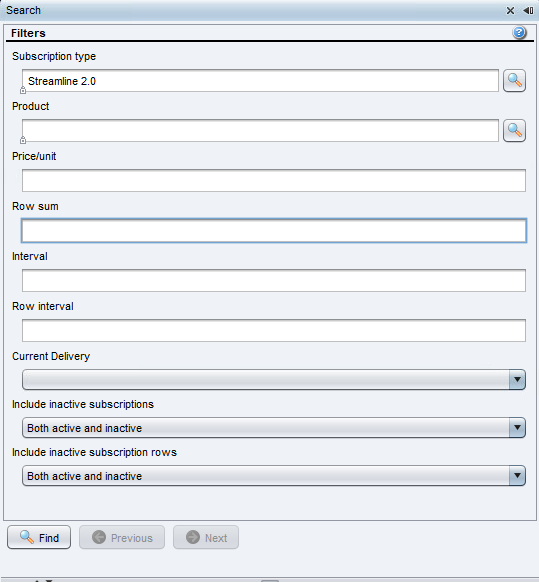
You can use one, or multiple search parameters to limit the hits you get.
- Subscription type - Choose subscription(s) you want to update.
- Product - Search for all subscriptions that have a specific product in them.
- Price/unit - Price for the subscription products. Can use range like 100 - 200 or 199 to get specific price.
- Row sum - Summarized amount with discount substracted per subscription row. Can use range like 100 - 200 or 199 to get specific price.
- Interval - Interval for the subscription. Can use range like 25 - 40 or 61 to get specific interval.
- Row interval - Interval for the subscription products. Can use range like 25 - 40 or 61 to get specific interval.
- Current delivery - Selection on whether it is limited deliveries or unlimited deliveries you want to update or update both.
- Include inactive subscriptions/subscription rows - Use "Both active and inactive" to get all subsriptions in your results. Or either or, to update only active or inactive.
Update of intervals or prices
If you are going to update subscription intervals and it will be to a higher interval than what it is today, for example:
24-40 --> 50
41-60 --> 70
61-100 --> 110
you need to consider which group of intervals you start with.
If you start with the lowest group of intervals, those who have received interval 50 will end up in the group 41-60 and then be updated to 70 and then to 110, which means that all subscriptions will have the same interval.
So it is important to start with the highest interval and change them first to get it right.
The same applies for updating prices if you are going to raise the price; start with the highest prices and work down to the lowest price and raise it last.
Grouping of results
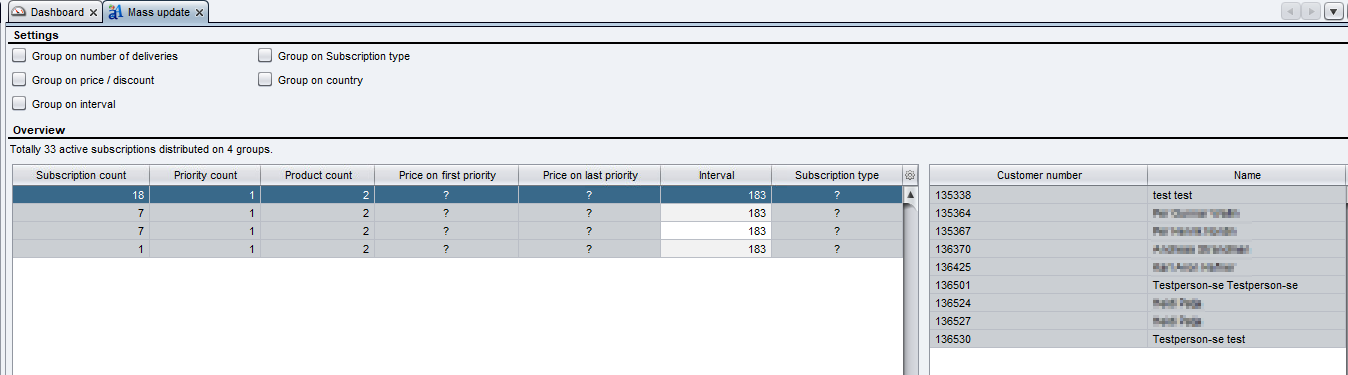
To be able to update the subscriptions better, you might want to group the results according to your update needs. If you're about to update Price of the subscription, it could be good to group the results by price / discount.
If there are mixed results in your search, you will get a question mark in the field that contains multiple different values.
You are able to group the results with multiple rules, but the more you choose, the more split the results will get in your Overview window.
Please keep in mind, that you need to update every row in Overview separately.
On right side of the overview window, you'll see a limited list of customers that have a subscription that is exactly same with your matched grouping. Remember that there can still be question marks for columns like "Delivered quantity" if you only group by price / discount.
Updating the results
When you've chosen a row in Overview, you're able to change the values in "Rows of selected subscription group" view.
You may need to change the value for every row in Overview window as the data you want to update may differ for every group.
Finally. Remember to save!

Still haven’t found what you’re looking for?
