

Help Centre
How to configure a Flexible package
Offering bundles is a powerful strategy to increase the average order value. In the PIM, you can achieve this in different ways depending on how much freedom you want to give the customer.
While a Static package is perfect for fixed sets (like a standard gift box where every item is pre-determined), it can sometimes be too rigid. If a customer likes the bundle but wants a different color or flavor than the one you selected, they might abandon the purchase.
The Flexible package solves this by allowing you to curate the structure of the bundle while giving the customer the freedom to choose their preferred variations within it. Instead of a rigid set of items, you provide options, allowing the customer to personalize the package to their taste.
The Flexible package works on the simple logic of "Groups" to provide guided customization. Instead of adding specific items directly to the cart, you create defined slots (or groups) and populate them with available products, requiring the customer to make one selection from each group to complete the package.
Why use a Flexible package?
Using this product type simplifies the shopping journey while maximizing the order value.
- Ease of setup: You are simply referencing products that already exist in your PIM. You do not need to create complex new stock logic; the package simply pulls inventory from the selected items.
- Customer experience: Instead of navigating to multiple different product pages to piece together a set, the customer can build their perfect bundle from a single, convenient page.
Step 1: Create the package and basic settings
The first step is to create the container for your products.
- Click "+ Create new product" in the top right corner of the product list.
- Select Flexible package from the list of product types.

Once created, you need to configure the basic data across the different tabs to make the "virtual" product ready for the store.
- In the Settings tab. Assign a name and product number, and set the product state to "Ready for sale".
- In the Variants tab. Untick the option to use attributes to automatically create a single "Default variant", since packages usually function as a single unit.
- In the Enrichment tab. Add a description, metadata, and product properties, and upload a media image that showcases the entire set.
- In the Categories tab. Assign the product to a page so customers can find it easily alongside your standard products.
- In the Prices tab. Set the original price manually (typically based on the sum of the cheapest option in each group) and optionally set a lower sale price to create a purchase incentive.
Step 2: Define the package contents
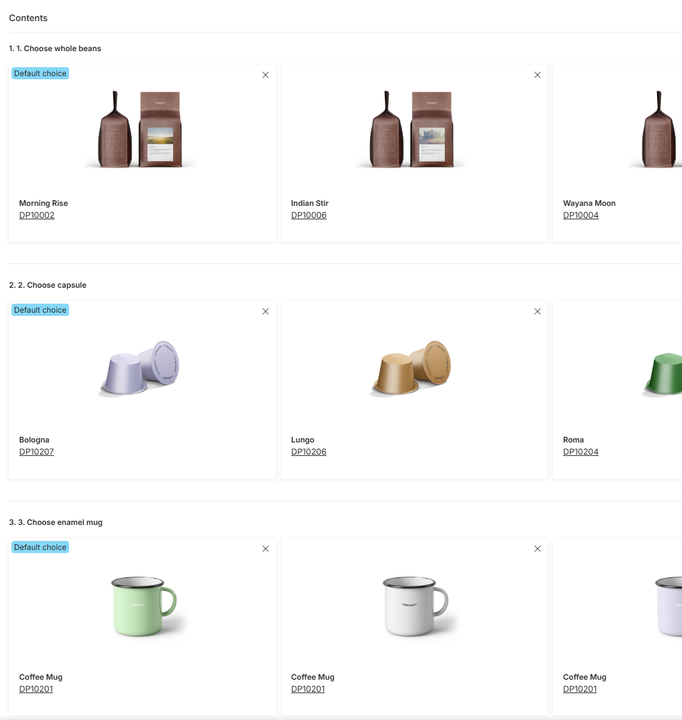
This is the most important step. Navigate to the Package contents tab to define the structure of the bundle. The interface is designed to let you build distinct "Groups" representing the choices the customer needs to make.
- Click "+ Add new group" to create the first slot in the bundle (e.g., "Step 1: Choose your Main Item").
- Click " + Add content to group". Search for and select all the product variants you want to offer for this specific slot. For example, if the first slot is for a specific type of item, add all the available colors or styles of that item here.
- Create subsequent groups for the remaining items in the bundle (e.g., "Step 2: Choose your accessory") and populate them with the relevant options.
Step 3: Publish the package
Once the configuration is complete, navigate to the Publish tab. Review your data and toggle the status to "Published" to make the package live in your webstore.
Note: If this is the first time you are configuring this product type, it requires additional setup in the CMS. You must ensure the Package component is added to the Product Detail Page layout to correctly prepare and present the selection choices to the customer in the webstore.
See it in action
Want to see how a Flexible package works for the visitor in the webstore? Visit our demo store to experience the selection process live. View Demo: The Brewmaster's Essentials Kit