

Help Centre
FAQ
How to setup your Viskan
In order to send data from the webshop to Google Tag Manager (GTM) or Piwik PRO, all you need to do is this:
For GTM:
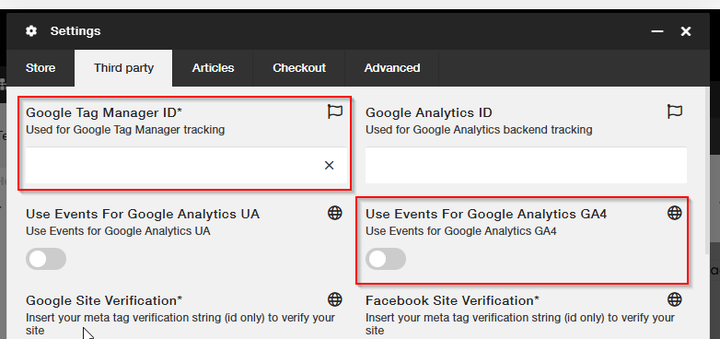
Enter GTM ID and switch on "Use Events For Google Analytics 4". Note that the GTM ID is language specific which makes it possible to have one GTM container for each language. It also means that you need to add the ID for every language the shop uses.
For Piwik PRO:
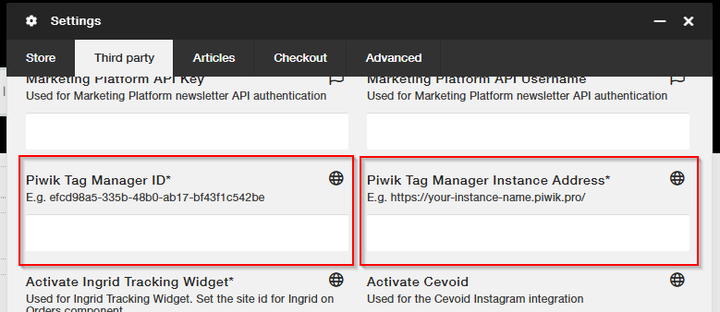
Enter Piwik Tag Manager ID and Piwik Tag Manager Instance Address. Both are global (for all languages).
For GTM, Viskan has a standard setup that can be imported into the GTM container. This import will add all variables, triggers and tags needed for tracking with Google Analytics 4. The only thing needed after import is to change the Google Analytics Measurement ID in a variable.
To create a new country go to Basedata > Country. Press "Create new" in the top left corner.
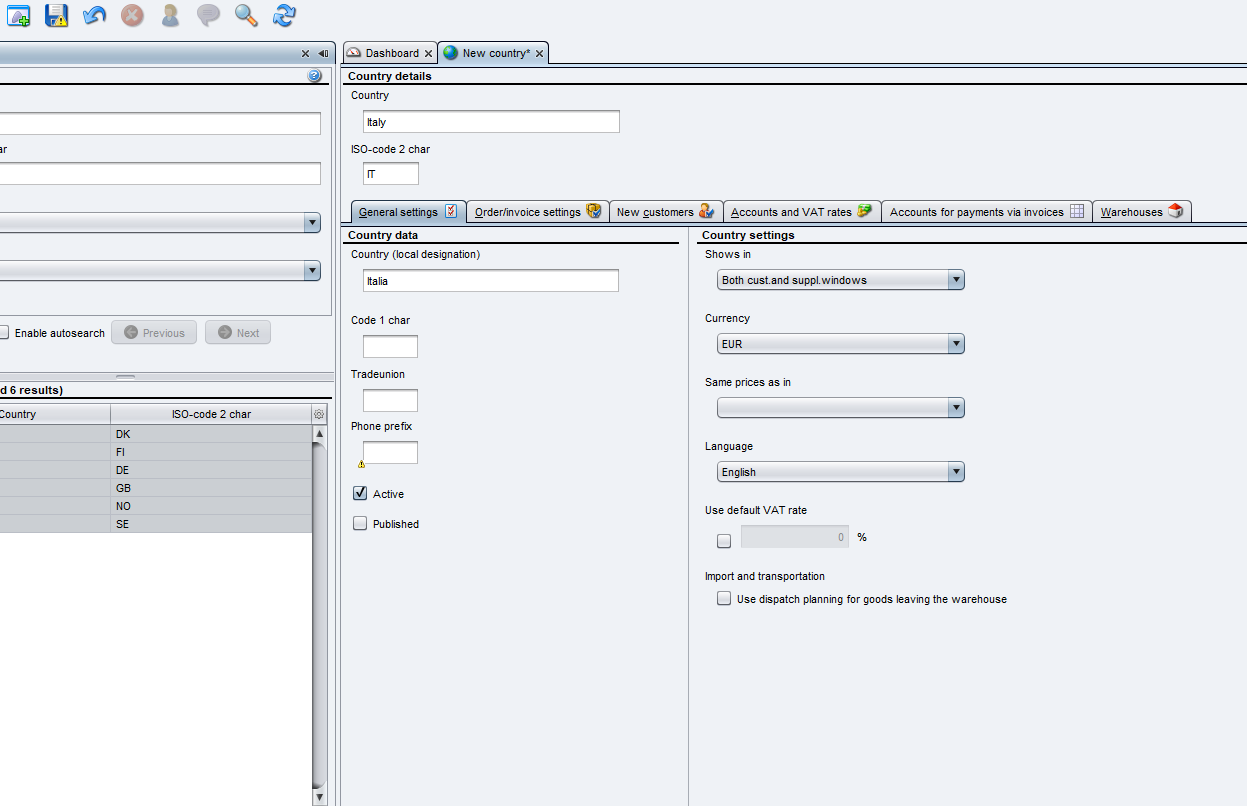
Fill in Country details & General settings.
Country details:
Enter name of “country” and “ISO-code”, the ISO code exists of two letters, e.g "IT" for Italy.
General data settings tab:
Enter “Country (local designation)”
Enter “Phone Prefix”
Enter “Currency”
Enter “Language”
Enter default VAT rate for the country
Once you've completed the entire country setup and are ready to go live, make sure to select the "Active" and "Publish" checkboxes.
When finished filling in the fields in data settings, move on to the next tab.
Order/Invoice settings tab:
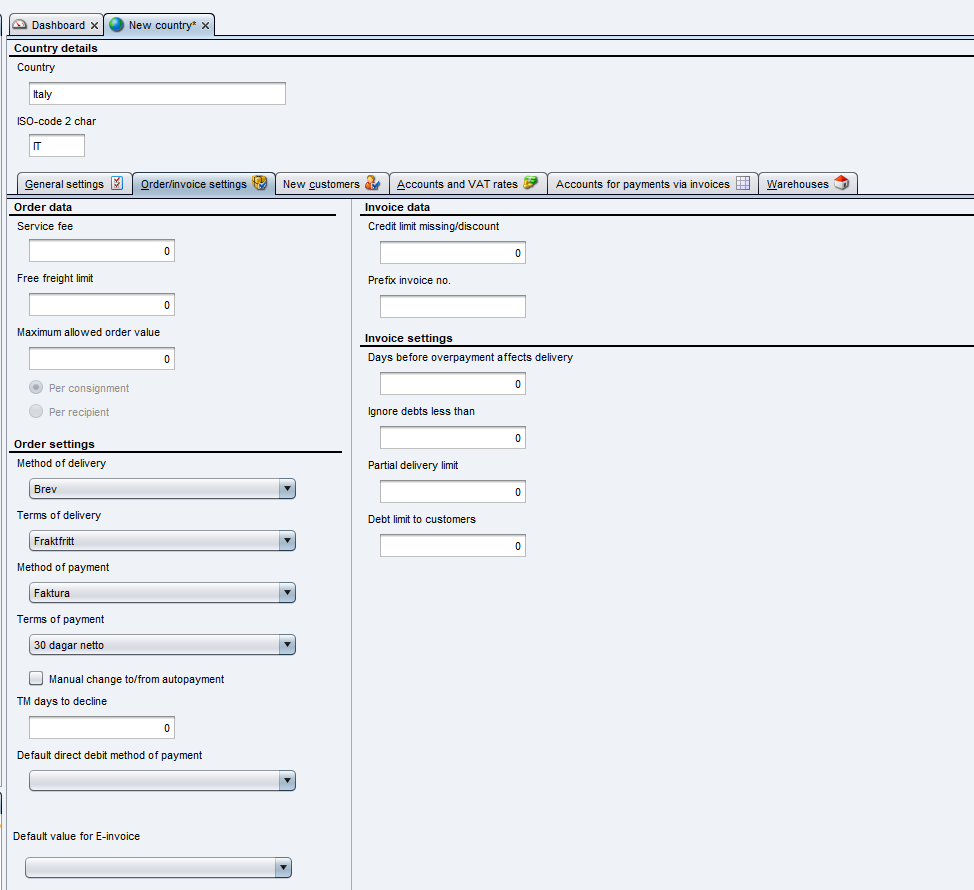
- Enter “Method of delivery”.
- Enter “Terms of delivery”.
- Enter “Method of payment”.
- Enter “Terms of payment”.
- Enter "Free freight limit" (orders with a higher value than the paramenter will result in free freight).
- Enter "Service fee" (this amount will be added on each order)
- Enter "Ignore debts less than..." (Invoices with a balance less than the defined amount will be written off).
-Enter "Partial delivery limit" (this value of the deliverable articles must exceed this value in order to create a partial delivery).
New customers tab:
Specify your choice of privacy settings, e.g. if a new customer should have the setting that they automatically consents to recieveing email information.
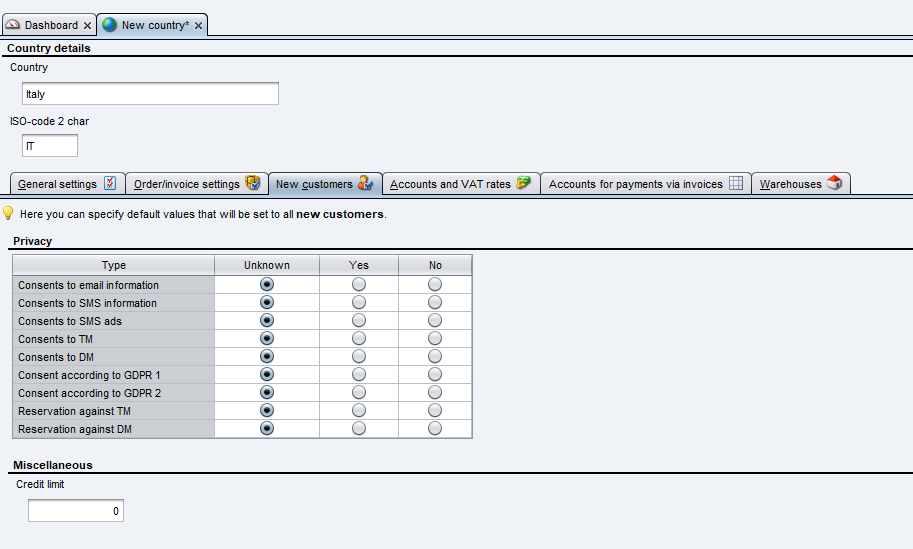
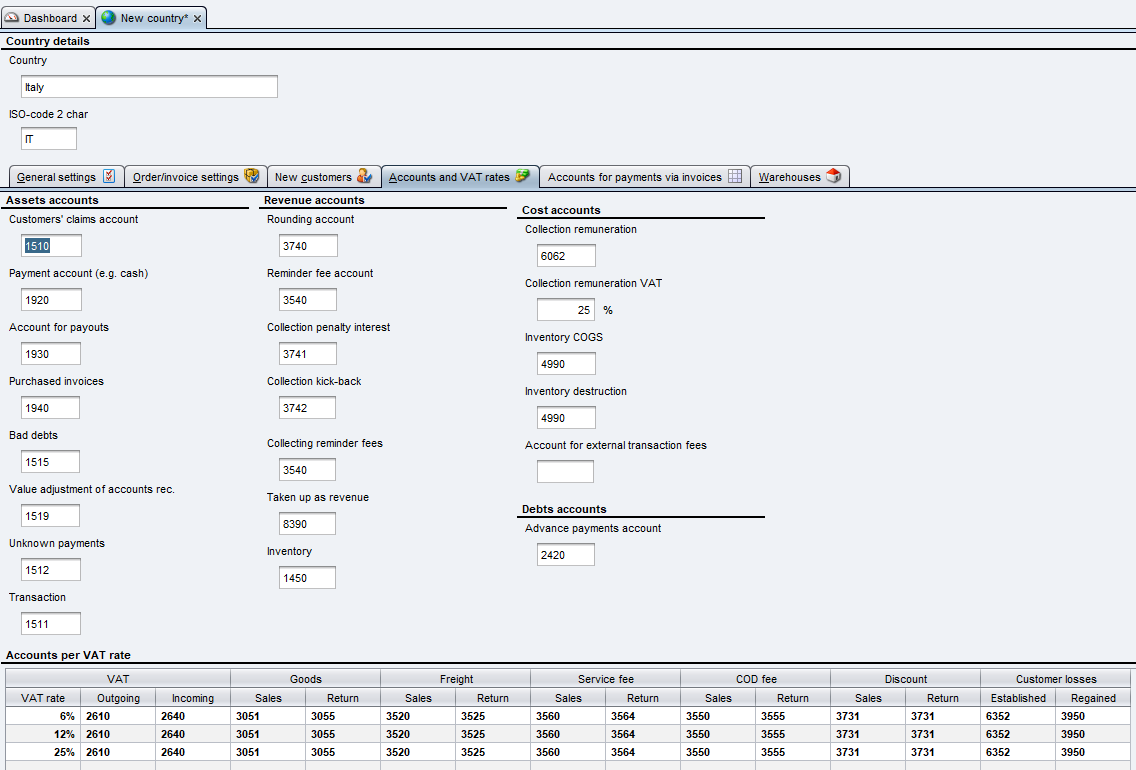
Accounts and VAT rates tab:
Enter your book keeping accounts and VAT rates that should apply for the country.
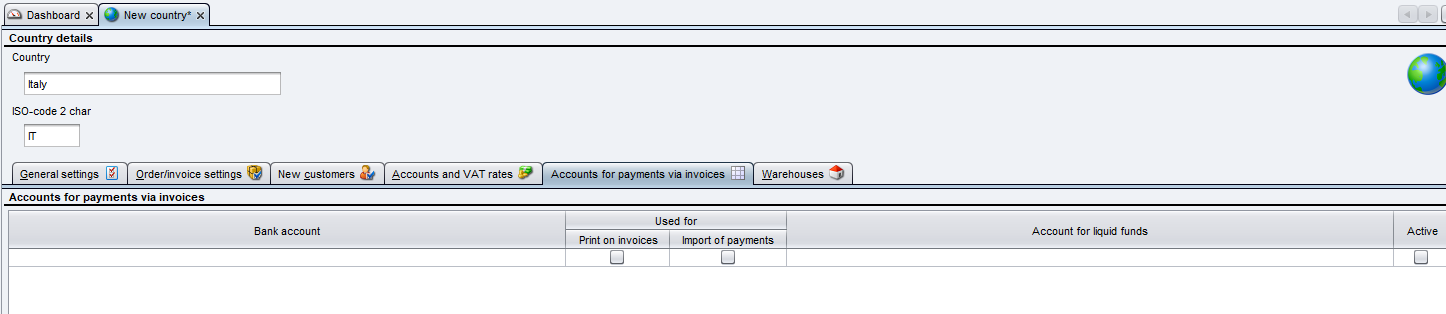
Accounts for payments via invoices tab:
If using “Invoice” as payment method, you need to specify a bank account for printing on invoice and for receiving payment files.
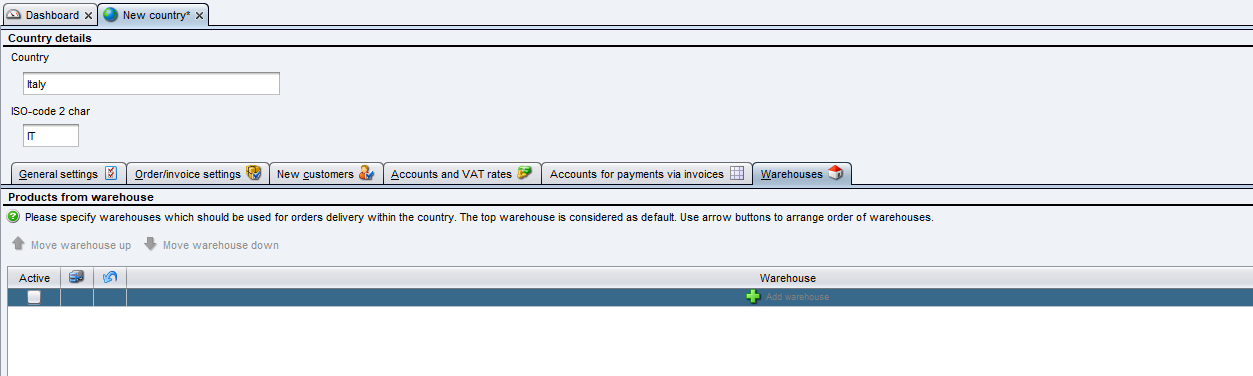
Warehouse tab:
Enter the warehouse that this country should use. Note that the warehouse needs to be created before adding it in this tab. Please note that this field is only shown if you have multiple countries active.
Note:
Please note that some settings needs to be activated by Viskan before the country could be used.
Also be aware of that some parameters such as “payment method” needs to be defined before it is chooseable in the “country” dialog.
Login and user management
- Go to Admin -> Users -> Invite users.
- First add email address, then add security/privilige setting for that user. Note that the user needs to belong to at least one user group.
- Choose Add and Send invitations
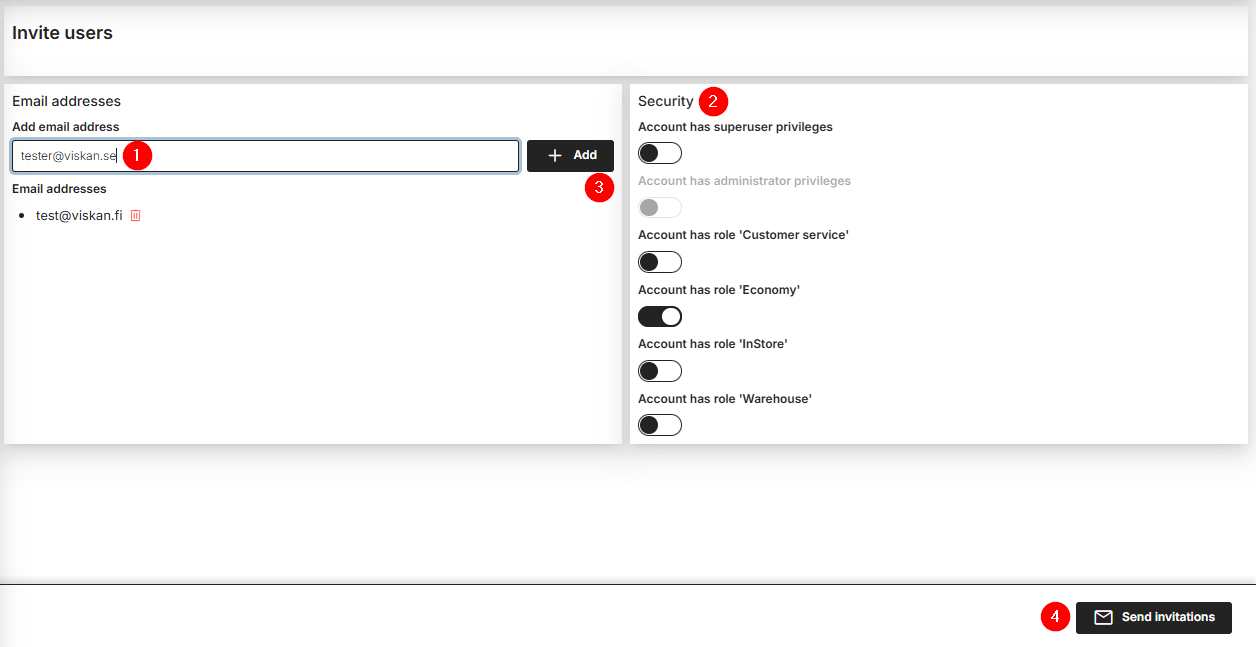
Before sending invitation from the Viskan Backoffice check if the person has a user in the Citrix based Viskan. If yes:
- Add phone number (with coutry code)
- Add email address to that user
First try the Citrix troubleshooting guide
Make sure you have gone through all the steps in the guide.
If you are still not able to login or launch Citrix, contact Viskan support with the following information:
- Citrix username
- Which company you are trying to login to
- Are you using Citrix via web browser (e.g. Chrome/Edge) or Citrix workspace app
- The time when you tried to login
- Possible error messages
The more information you provide the easier it is to solve the issue.
First:
1. Restart your mobile phone
2. Check if you are able to receive any sms messages
If you are able to receive other sms messages, but still not the Citrix 2fa sms, contact Viskan support with the following information
- Username
- Phone number (with your country code)
- Mobile operator
Campaigns
Viskan has a well-developed and powerful campaign engine with many possibilities for promoting campaigns online. Currently, there are 30 different campaign types to choose from, created in close collaboration between Viskan and its customers.
A campaign is always set up for a specific country, and if you want the same campaign in multiple countries, you can easily copy a campaign to several countries by clicking "copy" in the toolbar. You can choose to copy a single campaign or duplicate it across multiple countries.

You can also specify that a campaign should only apply to a specific payment method, delivery method, or customer category.
Campaign types 12, 21, 25, 27, 28, and 29 are subscription-specific and are only available if you are using the subscription module in Viskan.
Each campaign type is labeled either “Product” or “Cart” in Viskan.
Example:
Pay X EUR when purchasing two different variants (Product)
Discount X EUR or (if 0 EUR) X % discount on the entire cart (Cart)
This means that the campaign is either based on product level or the entire cart. For a campaign labeled “Product,” the campaign discount is applied at the line item level, while for a campaign labeled “Cart,” the discount is applied at the order level.
For a campaign, you can specify whether it applies to all products or specific products and/or categories. You can also choose to exclude certain products/categories from the campaign.
You can also specify that a campaign requires a campaign code to be activated on the site. This can be either a general campaign code or unique codes that can only be used a limited number of times.
Some campaign types (only those where its applicable) have a setting called “Use as price campaign,” which means that the discounted price is displayed directly in the product listings and on the product detail page if the product is included in the campaign. For campaigns without this setting, the discounted price is only displayed when the product is added to the cart.
How do I combine different campaigns?
It is possible to combine campaigns that have different types, “Product” and “Cart.” In such cases, you do not need to make any special settings in Viskan. If an item is included in both campaigns and added to the cart, both campaigns are activated simultaneously on the site.
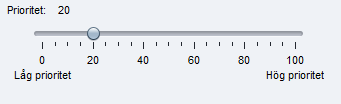
However, it is not possible to combine campaigns of the same type (Product/Cart). In such cases, the campaign priority determines which campaign is activated. The priority can be set for each campaign in Viskan.
Instore
- No integrations are required against the store and cash register system. All that is needed is a web browser.
- First the module needs to be in place. That Viskan needs to do.
- Setup a new store. This is something that you either do yourself or Viskan can handle it for you. Information needed is store number and name, store email, address to the store and potential store opening hours.
- New store users are needed that is connected to the store.
- If you also want to use Returns you also have to setup a warehouse that shall be connected to the Click & Collect store.
- New email templates needs to be setup for the end customer to receive information about their order.
Read more information here
- No direct integrations are required against the store and cash register system. All that is needed is a web browser. A warehouse needs to be setup. Current store stock balance needs to be imported via either Viskan API or via a .csv file.
- Pick & Pack module is dependant on having the module for Click & Collect in place first. That Viskan needs to do. See more information under "How can I start using Click & Collect?".
- Information needed for setting up the Pick & Pack module is store number and name, store email, address to the store and the store opening hours.
- Same users are used as the ones setup for Click & Collect so no need of setting up new ones.
- You can use the same email templates as for Click & Collect or create new ones.
Read more information here
- No integrations are required against the store and cash register system. All that is needed is a web browser.
- A warehouse needs to be setup in Viskan and connected to a store. You can setup the store and warehouse yourself by using Viskan backoffice, but the connection between the two is needed to be done by Viskan.
- If in need - you need to setup different return reasons for physical store versus e-store.
- You can use specific email templates/sendouts for Instore Returns that is connected to the different return reasons. These templates you can setup yourself in Viskan Backoffice.
- The functionality for Instore Returns can be used with the other Instore modules. See more information under "How can I start using Click & Collect?", "How can I start using Pick & Pack?" and "How can I start using Instore Shipment?".
Read more information here
- Instore Shipment module is a true omni-channel module and an alternative to the Pick & Pack module. In the Instore Shipment module you can adapt which delivery method that should be used per store - such as Click & Collect or other delivery options.
- The store can see which orders that can be sent from store, Print delivery notes etc. directly in store, use Automatic delivery notification to customer, use Last Mile and set maximum of the number of orders that the store can handle at the same time.
- Delivery methods needs to be setup - this is done by Viskan.
Read more information here
- In the left hand menu in Viskan Backoffice. Go in under Warehouse/Warehouses
- Click "New" in the upper toolbar to the left
- Enter the name of the stockhouse
- In the settings, choose if the warehouse shall be used for Outdeliveries, Returns or both.
- 'Reserve only when manually selected' - Needs to be checked when using Pick & Pack and Instore Shipment. Choose if delivery from this stockhouse should only happen when the stockhouse is chosen on the order. Stock balance from this stockhouse will be excluded in third party communications and eStore.
- 'Include stockhouse balance' - not used when "Reserve only when manually selected" is checked. Choose if this stockhouse should be included in calculation of stock balance in for example, eStore and third party communications.
- 'Managed by external system' - set to YES if stock keeping is done in external system, otherwise set it to NO if it is managed in Viskan System.
- Click 'save'
If in need of more information, contact your Customer Manager.
Product management
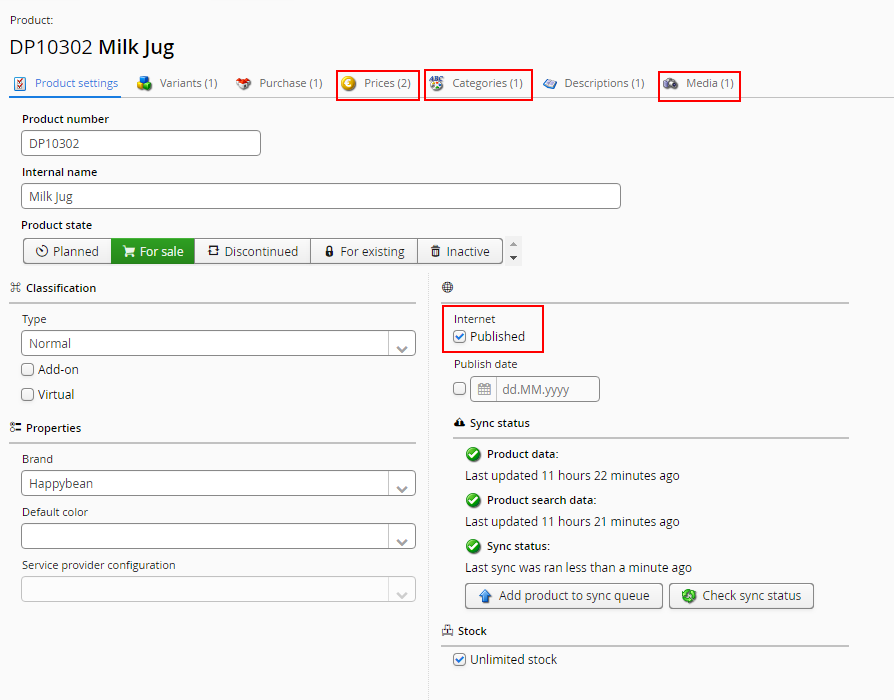
All of the following are required for a product to be visible on site:
- Category - the product needs to be added to a category
- Stock balance - the product must have an available balance in a warehouse the stock of which is counted towards the available balance on the site
- Media
- Price for correct country/currency/club
- Translations for all attributes
- Linkfriendly name
And the product has to be published, also on SKU level.
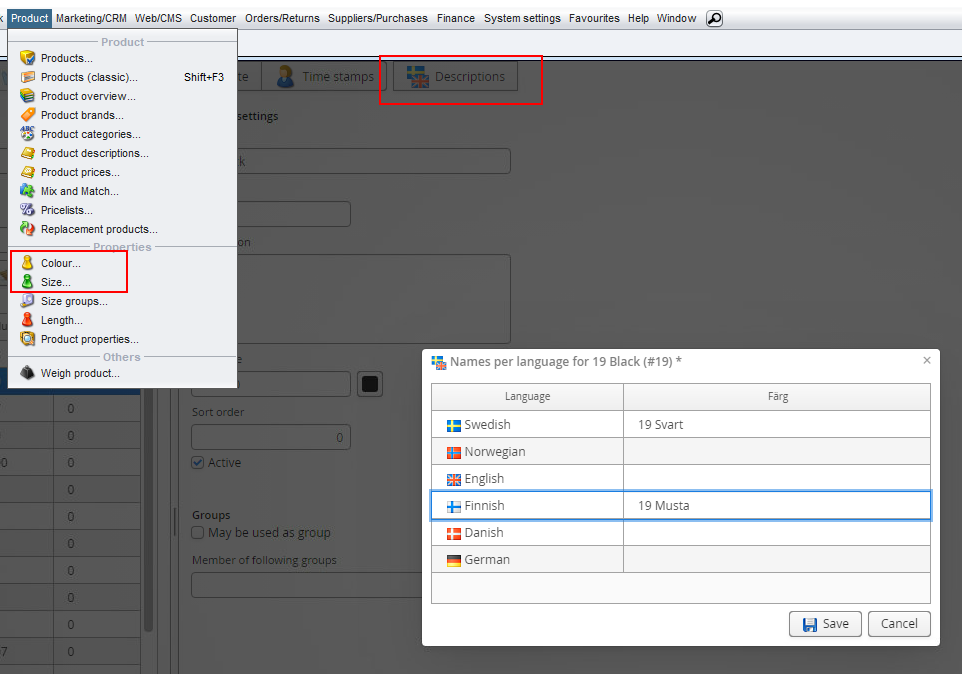
Note that you need to add size and color translations their own editors.
In Viskan, an article consists of one or more SKUs (Stock Keeping Units), which are identified by PLUno.
Once an article is created in ETM with a specific PLUno, article number, and attributes, the SKU cannot be modified later in the interface. In other words, attributes for a specific PLUno cannot be changed..
If an error has been made or there’s another reason to modify the attributes of a specific SKU, a so-called "Article Remap" must be performed. This is done by importing a file with the changes, after which a background job in Viskan (usually run at night) updates the SKU.
File Import
Format: CSV (tab-separated) or Excel (.xls, .xlsx)
Filename: *.*
File Content: The first row of the file must be a header row.
Description: This import modifies SKUs, e.g., moving SKU “1000 - black” to “1000 - black/red.” The new SKU must not already exist.
The import can also be used to merge multiple products into one.
Note: Product data such as descriptions or product names are never changed, only SKU data is updated.
Fields
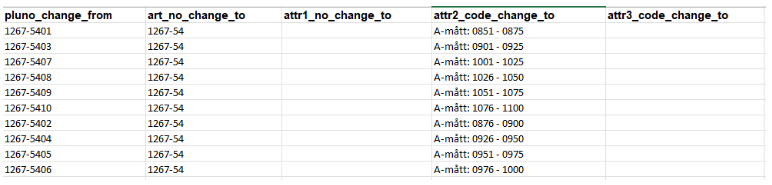
To perform a remap, create a CSV or Excel file with the following structure:
- Pluno_change_from - The PLUno to remap.
- Art_no_change_to - The article number to which the SKU will be mapped.
- Attr1_no_change_to/Attr1_code_change_to (depending on if you use attr1 number or not) - The color code to be mapped.
- Attr2_code_change_to - The size to be mapped.
- Attr3_code_change_to - The length code to be mapped.
Note: You may use different attributes such as color and size depending on what is configured in Viskan.
Color (Attribute 1), Size (Attribute 2), and Length (Attribute 3) must already exist in ETM before importing the file. If the variant has no attribute, leave the field blank. To change, for example, Attribute 2, all other attributes for the variant must also be included.
You can move a variant to another article by specifying the new article number in Art_no_change_to (the new article number must already exist in ETM before importing the file).
Below you can see example of file in excel o csv format (different field names on attr1 depending on if you use attr1 number or not).
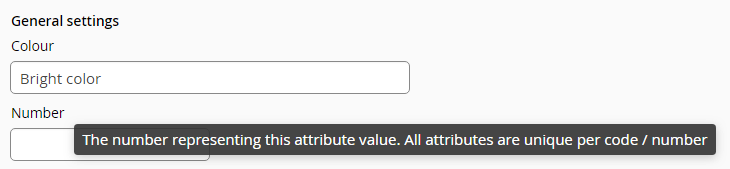
Here you can see if you use attr1 number or not (the field Number is empty when you don't use it).

Importing the file in Viskan
Navigate to Archive -> Import/Export.
- Click the green arrow icon in the top menu to open a new window.
- Click the magnifying glass to find your file.
- Select your hard drive and navigate to the folder containing the file.
- Select the file.
- Click [Open] to close the window.
- Click [Import].
If everything works correctly and there are no error messages from Viskan during the import, the file will be marked as complete. The nightly job will then update the imported SKUs.
General Viskan questions
First restart Viskan. If you are using Citrix based Viskan close Citrix and reopen. If you are using the new Viskan Backoffice close the whole browser and restart. Then try again.
If you still get an error contact Viskan support (companyname@support.viskan.com) with the following information:
- Error message
- Your username
- What company are you working with?
- What time did you get the error?
- What were you trying to do?
- Which view you were in?
- Are you using Citrix based Viskan or the new Viskan Backoffice?
- Has this happened before?
The more detailed information you provide, the better we can help you.
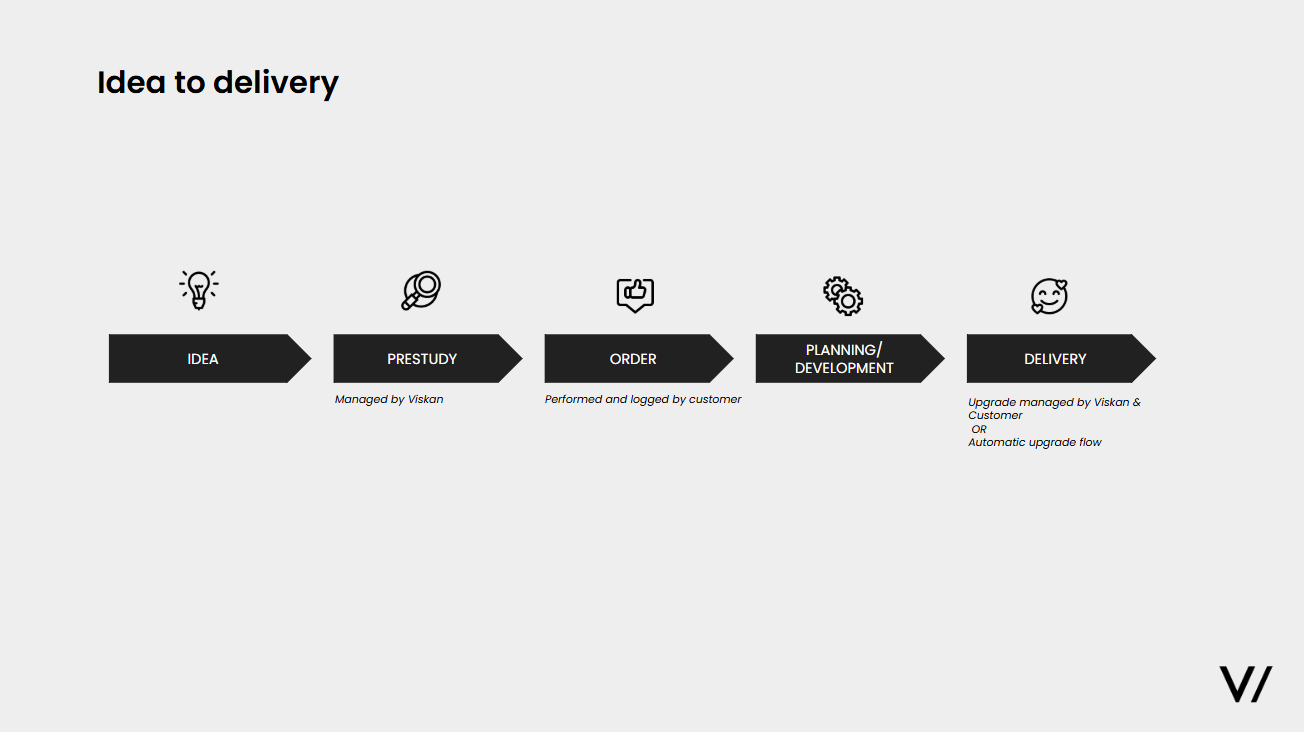
IDEA
Customer manager and customer discuss WHAT you want.
The better prepared you are, the better delivery you will get.
PRESTUDY
When you know WHAT you want you have to ask for a prestudy.
Developers will discuss HOW to solve this in the best way.
You will get an estimation.
ORDER
Customer acceptance -> place order
An estimate is an approximate assessment of time based on the requirements specification. The estimate doesn’t need to be exact, but rather provides an indication of what can be expected.
1. The customer contacts Viskan with a request.
2. The customer provides Viskan with a specification that clearly describes:
- Background
- What should be accomplished
- And why
3. Viskan investigates and provides a time estimate for the work.
4. Viskan informs the customer of the estimate.
5. The customer gives feedback to Viskan on whether the estimate is approved or not.
6. If the order is approved Viskan will plan for the work.
An estimate includes costs for the following:
- Research
- Development
- Testing
GDPR
In the role of Data Controller
Viskan store personal data for as long as your company is a customer of Viskan. If an individual leaves your organization and requests to have their personal data removed, Viskan will delete the data within 30 days of receiving the request. If a customer relationship ends, personal data may be retained for up to 6 months after the contract has expired, unless otherwise agreed.
As a Data Processor
The retention period for personal data is entirely based on each customer’s specific instructions. Viskan provides functionality in Backoffice to manually anonymize individuals upon request. Viskan also support the setup of automatic anonymization through scheduled jobs. This is not activated by default and must be requested by the customer, including conditions such as how long an inactive customer should be kept before anonymization. If this has not been set up, no customers are anonymized automatically.
In the role of Data Controller
In cases where personal data may be transferred, it is only to countries within the EU and/or to countries with which the EU has established appropriate agreements. These transfers are solely for internal use and take place within tools that Viskan uses in order to uphold responsibilities and service commitments in accordance with agreements. Viskan does not share or sell personal data to third parties.
In the role of Data Processor
No.
In the role of Data Controller
No
In the role of Data Processor
Only relevant personnel at Viskan have access to personal data of the customer's end users, solely to fulfill responsibilities and provide service according to the agreement.
Technical
Firewalls, mandatory two-factor authentication for both Viskan staff and Viskan's customers' users, VPN, code scanning to detect potential security risks, encrypted passwords.
Organizational
A Data Protection Manager reporting directly to the Legal & Compliance Team, policies to prevent and handle potential privacy incidents, annual training for all staff, and yearly evaluations of systems, organization, and policies.
WCAG
Viskan provides a robust, accessible foundation by handling the technical structure and code of your site. However, full compliance is a shared responsibility that also depends on the content you upload, such as image descriptions, descriptive link text, and the logical organization of your pages, as well as the specific design choices made for your brand.
During our onboarding phase, we work together to integrate your brand colors directly into the CMS for use on buttons, text, and blocks. Our goal is to align with WCAG 2.1 Level AA standards, which require a contrast ratio of at least 4.5:1 for standard text. If a specific brand color falls just short of this requirement, we recommend making a subtle adjustment to the shade. By slightly deepening or lightening a color, you can achieve full compliance without noticeably changing the perception of your brand. Viskan is always available to help you test these combinations or suggest online tools to verify that your text remains easy to read.
Yes, we can support you by providing a technical report that identifies the accessibility features of our platform. While the final declaration of your conformance level is your responsibility, we are happy to guide you on what information should be included to be transparent with your customers.
Accessibility is a continuous process. Every time you add a new image, video, promotional banner or other content it is important to apply the same standards used during your initial onboarding. Our CMS is built with the flexible tools you need to keep these new additions inclusive for all users, and we are always here to talk if you need help or guidance on how to maintain these standards as your content evolves.
As the store owner, you have the best knowledge of your products and brand imagery. Therefore, you are responsible for entering descriptive Alt Text. This ensures that visitors using screen readers receive an accurate description of the visual content in your store.
For a comprehensive breakdown of the technical features we manage and the best practices for your daily content updates, please read our full guide on achieving accessibility through a shared commitment.
soft reminders
When it comes to soft reminders, you should think of them as reminders sent via email/SMS rather than letters. These reminders should not be compared to "bulk email/SMS" such as advertisements, but rather to the cost of sending a paper reminder (including postage and everything else factored into that cost) and the value that the SMS reminder creates (higher proportion of customers paying, quicker payments = better liquidity, lower drop-off on subscriptions due to fewer reminder fees), etc. Contact your CM regarding the fee of these reminders.
We can send soft reminders via email and/or SMS. These can be sent:
X days before due date
X days after due date
X days after the reminder date
You can use different templates depending on which product that shall be reminded, what reminder no it is etc.
There are DEMO templates in the system, one for email and one for SMS. Deactivate the template(s) and take a copy of it to design it as you want it to look.
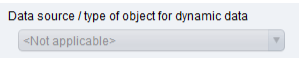
There shall not be any data source for these kinds of templates.
The templates must be named REMINDER_OVERDUE_EMAIL. If you want to use different templates depending on different things, then you must add a suffix after the template name, e.g. REMINDER_OVERDUE_EMAIL_productA or REMINDER_OVERDUE_EMAIL_productB
The suffix is then used in the job configuration for sending soft reminders.
In the email, information will be sent about one or several invoices. If a customer has more than one invoice that is unpaid and that shall be/has been reminded, there will be one email automatically with information about all invoices. The info that is repeated (information about the invoices) shall be within the repeat tags.
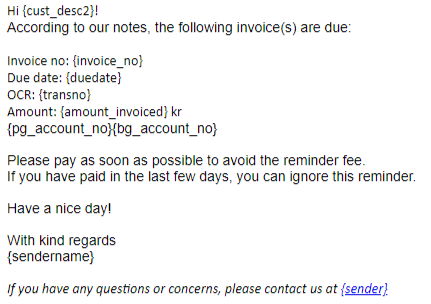
This is the section with the repeat tags. Since the information about the invoices are unique, you want to show the info per invoice. Information about where to pay could be shown either per invoice or could be added in the “head/footer” section as general information:

This is how the template looks like in the WYSIWYG:
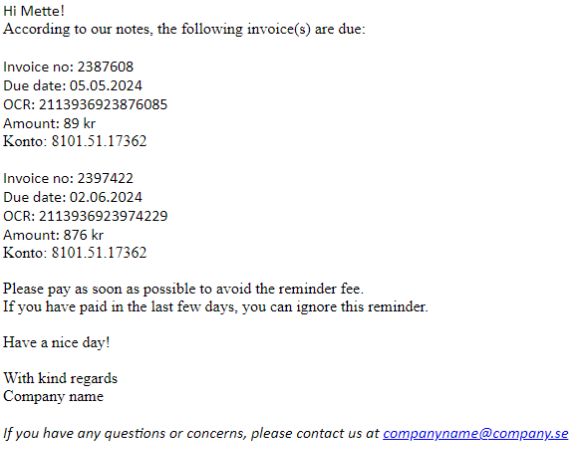
And this is how it looks in the reminder email that has been sent to the customer:
Fields that can be used in the email head/footer
(this information will be written once and are not repeated for each invoice):
cust_no
cust_desc1
cust_desc2
email_1
companyname
company_address
company_zipcode
company_city
company_email_1
company_url
company_phone_1
company_phone_2
company_fax_1
company_org_no
company_vatreg
Bg_account_no_head
Pg_account_no_head
iban_head
bic_head
bank_account_no_head
date_of_today
customer number
last name
first name
customer’s email address
Company name
Company Address
Company Zip code
Company's Postal Code
Company's Email
Company's Website
Company Phone 1
Company Phone 2
Company Fax
Company org no
Company vat reg no
Bankgiro
Plusgiro
IBAN
BIC
Bank account
Current date
Information that is repeated in an email (“rows”):
invoice_no
duedate
transno
amount_invoiced
amount_to_pay
remfee
bg_account_no
pg_account_no
iban
bic
bank_account_no
article_csv
currcode_iso3
prentype_desc
Invoice number
Due date
Transaction no (OCR/KID)
Amount invoiced
Amount to pay
Reminder fee
Bankgiro
Postgiro
IBAN
BIC
Bank account number
Product number(s) + product name(s)
Currency ISO code 3 characters
Name of the subscription
One SMS contains 160 characters. If you have more than 160 characters, the number of characters will be divided by 153 and then you get a number of how many SMSs that will be sent to the customer (the customer will only see it as one SMS) and you will pay per how many SMSs a reminder contains.
The templates must be named REMINDER_OVERDUE_SMS. If you want to use different templates depending on different things, then you must add a suffix after the template name, e.g. REMINDER_OVERDUE_SMS_productA or REMINDER_OVERDUE_SMS_productB
The suffix is then used in the job configuration for sending soft reminders.
An SMS cannot have repeated rows, so there will always be one SMS per invoice. You must still use repeat tags in the template when adding row level fields (see example).
This is how the SMS template can look like:
Dear {cust_desc2}, Your invoice {repeat}{invoice_no} with due date {duedate} is unpaid. Please pay {amount_invoiced} EUR.{/repeat} to our account {IBAN}. If you have already paid, thank you very much and ignore this message.
This is how the SMS looks like.

These are fields for the “head”:
cust_no
cust_desc1
cust_desc2
companyname
company_address
company_zipcode
company_city
company_email_1
company_url
company_phone_1
company_phone_2
company_fax_1
company_org_no
company_vatreg
date_of_today
customer number
last name
first name
Company name
Company Address
Company Zip code
Company's Postal Code
Company's Email
Company's Website
Company Phone 1
Company Phone 2
Company Fax
Company org no
Company vat reg no
Current date
These are fields for the “row”:
invoice_no
duedate
transno
amount_invoiced
amount_to_pay
remfee
bg_account_no
pg_account_no
iban
bic
bank_account_no
article_csv
currcode_iso3
outorder
prentype_desc
Invoice number
Due date
Transaction no (OCR/KID)
Amount invoiced
Amount to pay
Reminder fee
Bankgiro
Postgiro
IBAN
BIC
Bank account number
Product number(s) + product name(s)
Currency ISO code 3 characters
Internal order id (not order number)
Name of the subscription
It is Viskan who configures the job for sending the reminders.
You need to tell Viskan what parameters that should be used. Below you can see which parameters that can be used.
PrimaryDeliveryMethod
SecondaryDeliveryMethod
DaysAfterDueDate
DaysBeforeDueDate
NotifyByAllMethods_flg
DueDateFrom
Country_id
Remsetting_id
DaysAfterReminderDate
Active_cust_pren_flg
SMS_template_suffix
Extra_selection
Primary method of notification, can be 'email' or 'sms'.
Secondary method of notification, can be 'email' or 'sms' or empty. (Not the same value as PrimaryDeliveryMethod.)
Send notification for unpaid invoices that are at least 'X' days AFTER the Duedate. Used for selecting overdue/expired/datepassed invoices.
For sending notification for unpaid invoices that are at least 'X' days BEFORE the due date. Used for selecting undue/alive/date NOT passed invoices.
Send notification by all the methods i.e.send both Email and SMS notification. Default: We notify only by the first possible method in order PrimaryMethod, SecondaryMethod.
To handle the initiation phase, to not send old reminders.
(Optional) Country to filter the invoices.
(Optional) Reminder setting to filter the invoices.
(Optional) Days after the latest reminder date. Send notification for unpaid Reminders that are at least 'X' days AFTER the latest reminder's date.
(Optional) Only customers with at least one active subscription.
(Optional) Suffix to the notification template to enable different email templates for reminder 1, 2, 3.
If you want to make any other extra selections on order, invoice, customer.