

Help Centre
Citrix
Citrix delivery system
Viskan can be accessed through Viskan's Citrix application delivery system. In order to do this you need the Citrix Workspace app on your device.
Please follow the instructions below to install the software.
If your IT policy does not allow software installation, please contact your IT-department for assistance.
Installing Citrix Workspace
- Go to https://www.citrix.com/downloads/workspace-app/
- Download the latest version of Citrix Workspace for your operating system.
- Run the downloaded installer to install the application.
note: The installation may require administrator privileges on your computer. If you are unable to install the software, please contact your IT-department for assistance. - When prompted for “Store URL or email address”, please enter citrix.viskanetm.com and click Continue.
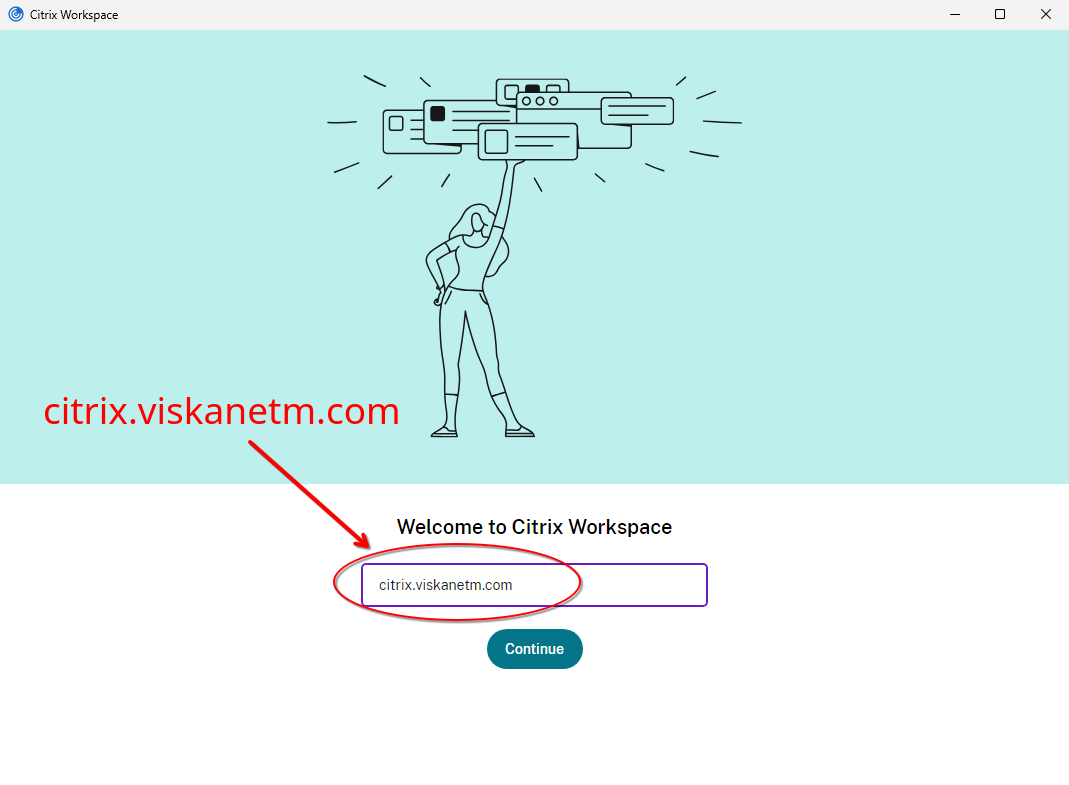
- When prompted for log on, please enter the credentials for your Viskan account.
- After logging in you will be able to start Viskan by clicking on one of the available applications within Citrix Workspace.
Launching your Viskan application
After installing the Citrix Workspace app, there are two ways to launch your Viskan application:
- Directly through the Citrix Workspace app (recommended)
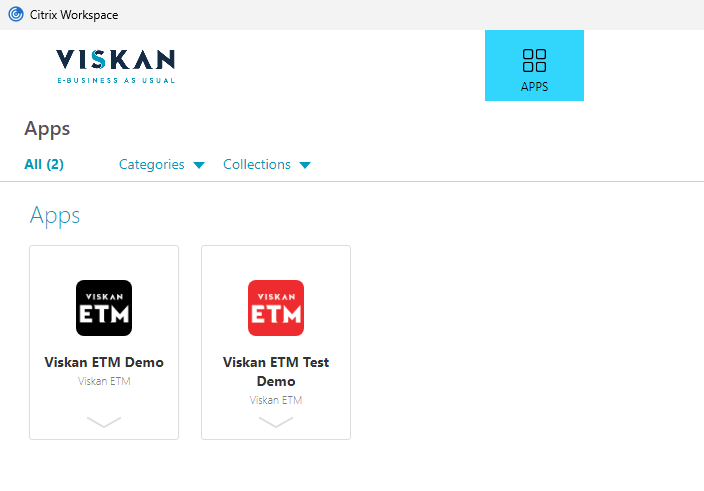
Simply start the Citrix Workspace software and login using your Viskan account credentials.
After logging in you will be able to launch your Viskan application by clicking on one of the available Apps within Citrix Workspace.
- Using the web portal
As an alternative to launching through the Citrix Workspace software, you can launch your Viskan application through our Citrix web portal.
Head to https://citrix.viskanetm.com and log in using your Viskan account credentials.
This method also requires that you have Citrix Workspace app installed on your device.
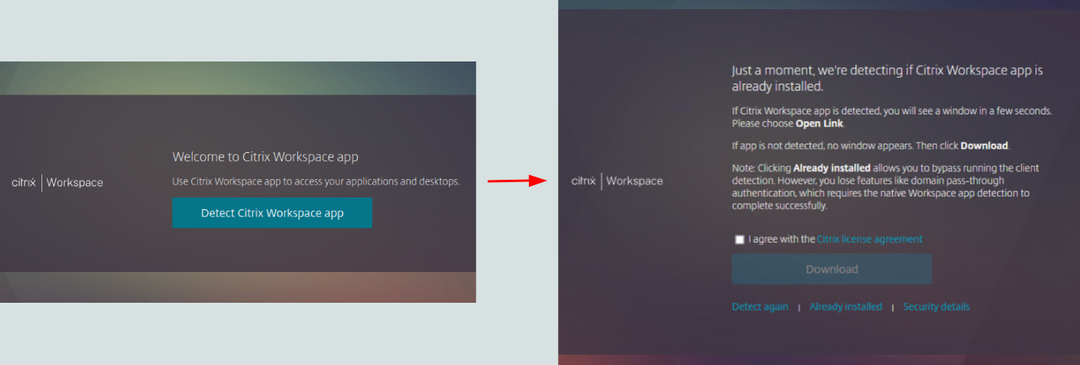
After logging in, the website will attempt to detect the Citrix Workspace app. If the detection is not successful, but you are sure that the Citrix Workspace software is installed, you can proceed by clicking “Already installed” at the bottom of the page to proceed.
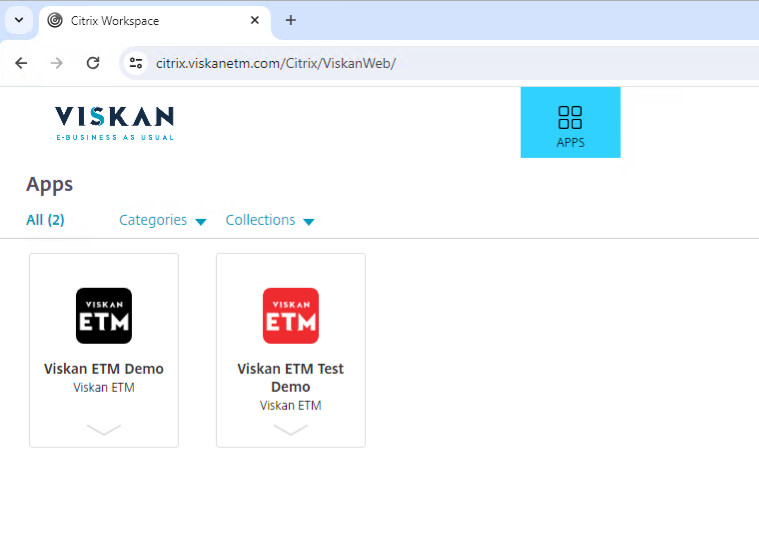
Once you are logged in, you can launch your Viskan application by clicking on one of the available apps.
Troubleshooting
If you run into any issues accessing your Viskan application, please follow the troubleshooting steps below.
If you are unable to resolve the issue, please contact IT-support within your organization for further assistance.
If you are confident that the issue cannot be resolved on your end, please contact your Viskan support representative.
Unable to launch Viskan ETM
- Check with colleagues
- Is it working for everyone else? If so, the issue is likely limited to your device. Proceed with troubleshooting steps below.
- Is it not working for anyone? If so, check with your IT-department if there are any general issues within your organization. If there are not, please contact Viskan for further support.
- Restart your computer - Sometimes applications malfunction. A good first step is to restart your computer, it's a quick way to resolve any temporary issues.
- Uninstall and then reinstall Citrix Workspace - If there is a problem with your installation of the Citrix Workspace app, this can resolve the issue. Make sure to restart your computer after uninstalling, before reinstalling the app.
- Try launching Viskan ETM through the Citrix web portal instead of launching directly from the Citrix Workspace app. Open your web browser and go to https://citrix.viskanetm.com to find the Citrix web portal.
- If you are currently using the Citrix web portal, try switching to the Citrix Workspace app instead.
- Reinstall the Citrix Workspace app using the /forceinstall switch (Experts) - On Windows systems, the Citrix Workspace installer can be run with the /forceinstall switch to clean up any existing configuration. Uninstall first, then reinstall using this command line switch.
Your Viskan ETM application is frozen and remains frozen after restarting
The following troubleshooting steps are only applicable on Windows computers.
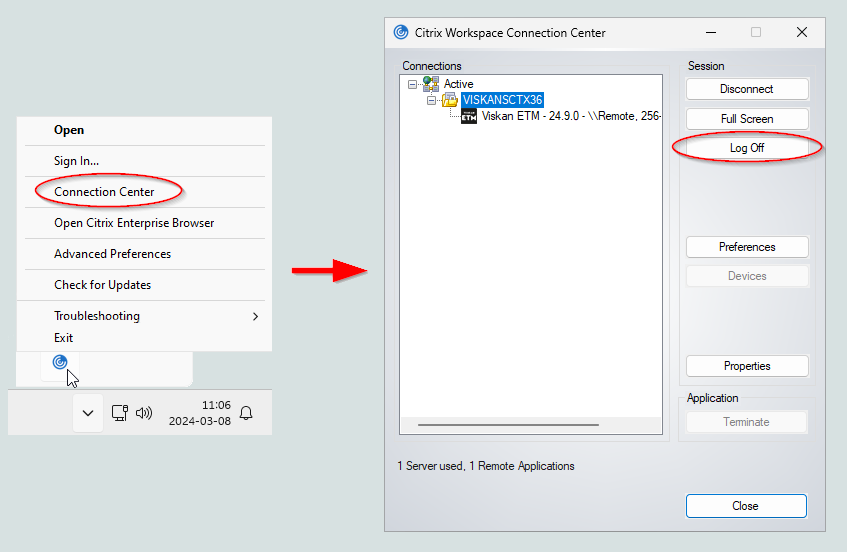
- Right click on the Citrix Workspace icon in your system tray and select “Connection Center”. When Citrix Connection Center opens, use the “Log Off” button to end your session. Then start your Viskan application again normally.
Still haven’t found what you’re looking for?
