

Help Centre
Two-Factor Authentication (2FA)
How to setup 2FA in new Viskan BackOffice
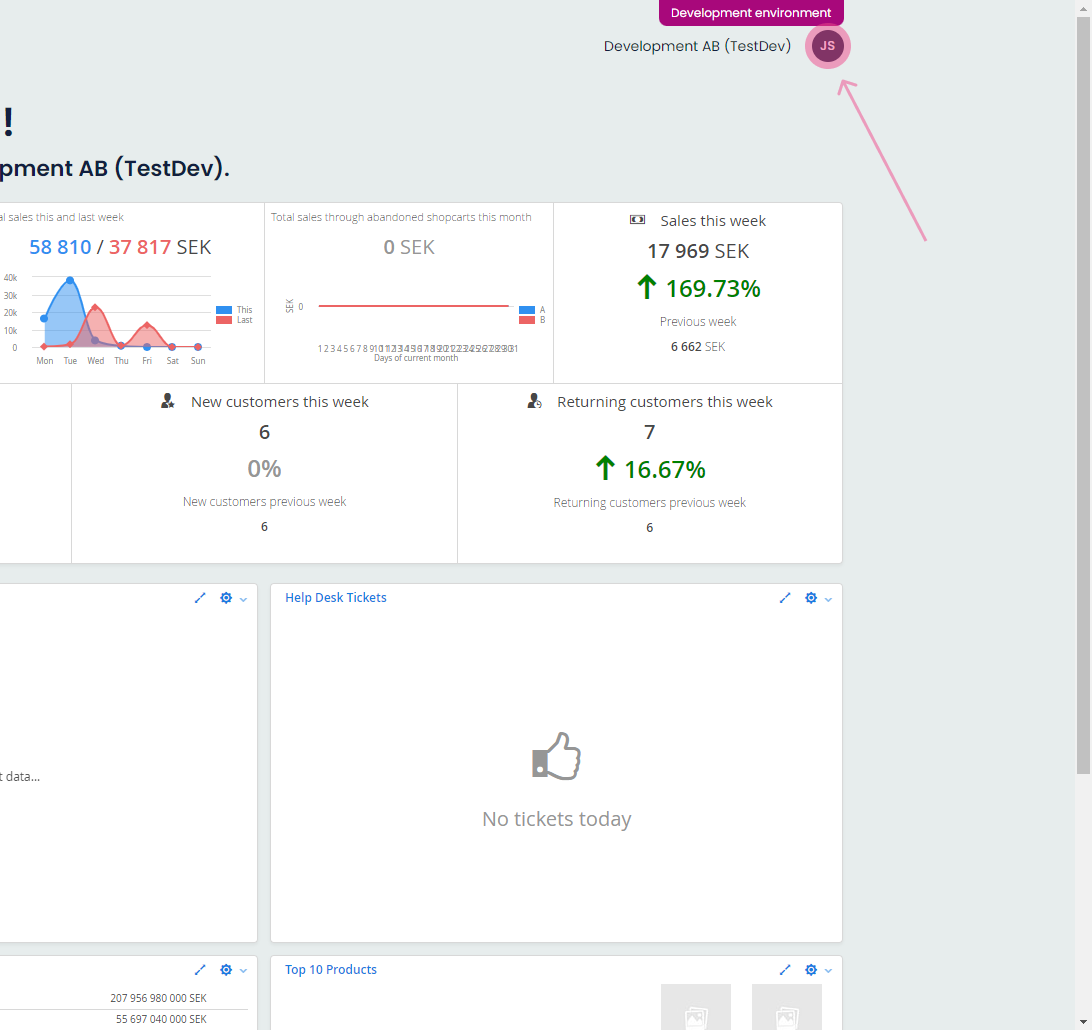
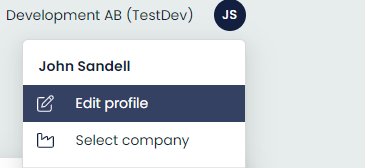
Step 1: Go to your profile and click edit profile.
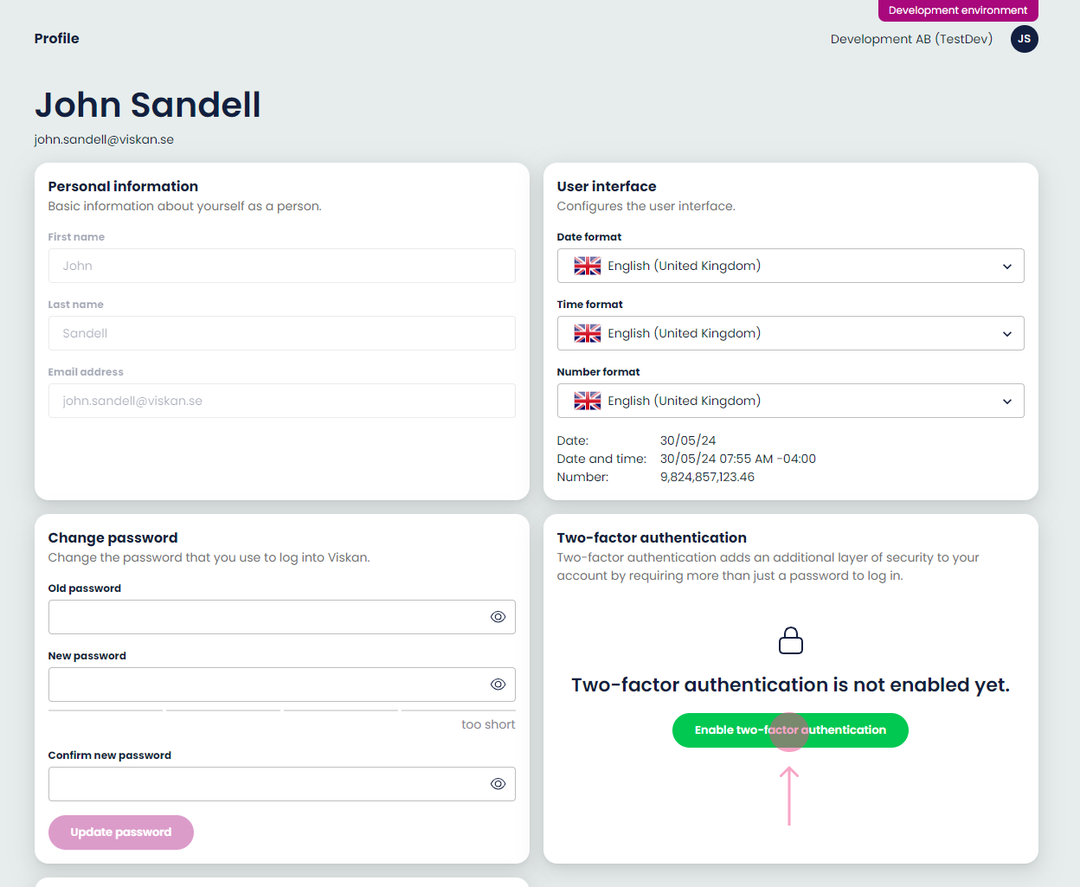
Step 2: Click on Enable two-factor authentication to start the process.
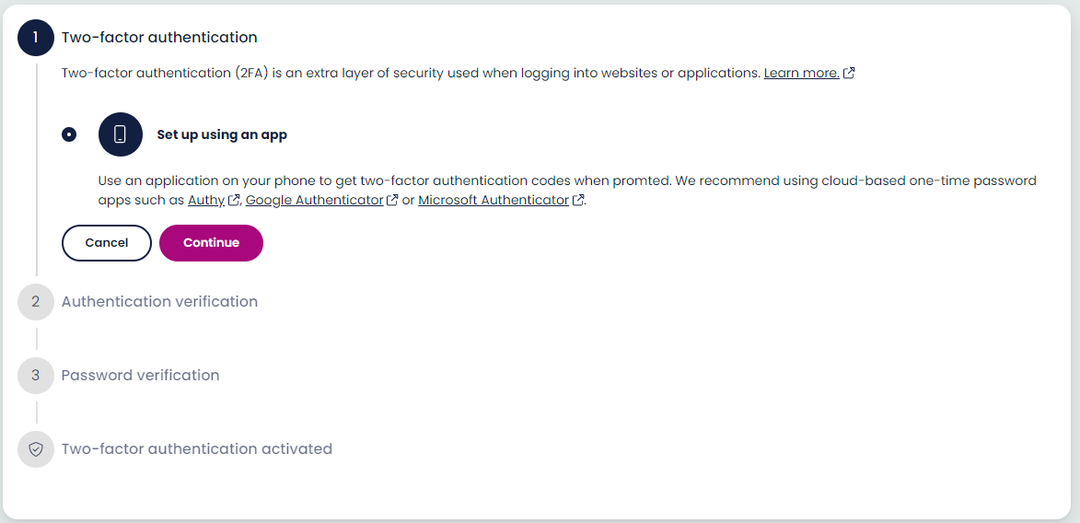
Step 3.1: Make sure you have an authentication app downloaded on your phone such as Authy, Google Authenticator or Microsoft Authenticator, then click on continue.
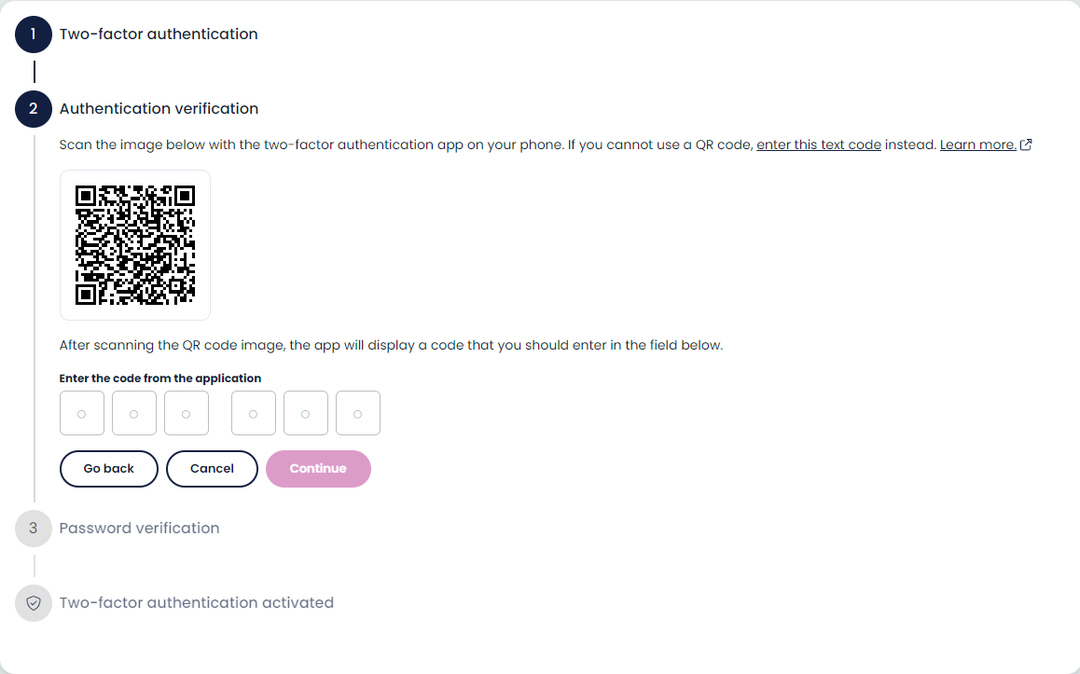
Step 3.2: Open your authentication app of choice and scan the QR code to set it up in the app. Then when displayed enter the code from your authentication app and click continue to proceed.
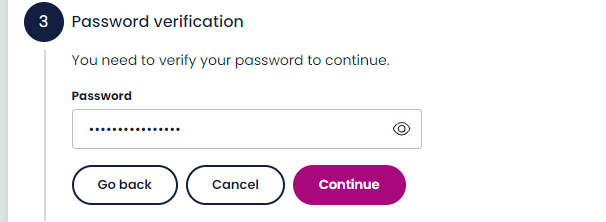
Step 3.3: Enter your password and click continue to proceed.
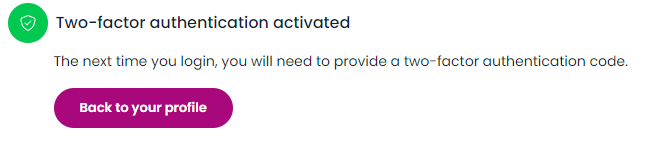
Step 3.4: If all goes well you should be greeted by a confirmation similar to the image below.
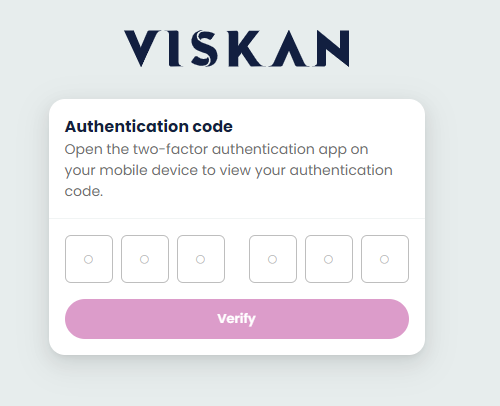
Step 4 (Verification): Log out and then log in again to verify that 2FA has been enabled properly. You should be prompted with this 2FA login if it has been enabled.
Still haven’t found what you’re looking for?
