
Help Centre
Introduction to product properties
Important Notice: The legacy views for handling properties are scheduled to be retired. We will share a detailed timeline and exact shutdown date with sufficient notice before any changes take effect.
Product properties in Viskan Backoffice allow you to define specific characteristics and attributes for your products, such as material, format, flavor profile, or technical specifications.
Properties are first created and configured in a central base view. Once created, they become available in the PIM, where they can be applied to entire products or to specific product variants (like a specific color or size).
Accessing product properties
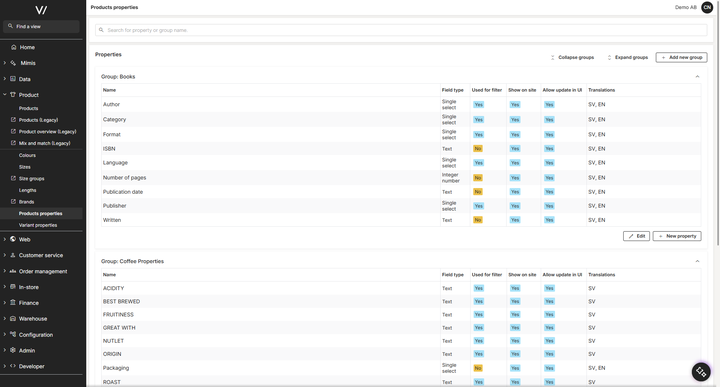
To manage your properties, navigate to Product > Products properties in the left-hand menu. This will open the main list view.
1. Products Properties List View
The list view gives you a complete overview of all the properties configured in your environment. Here you can:
- Search: Use the search bar at the top to quickly find a specific property or group.
- Manage groups: Properties are organized into collapsible Groups (e.g., "Books", "Coffee Properties"). You can create new categories by clicking + Add new group in the top right corner.
- Review configurations: The table displays key settings at a glance, including the Field type, whether it is used for filtering, if it is shown on the site, and which languages it has been translated into.
- Edit or Create: Click Edit to modify a group, or click + New property to start building a new attribute.
- Edit an existing property: To edit a property that has already been created, simply click on its row in the list.
2. Creating a New Property
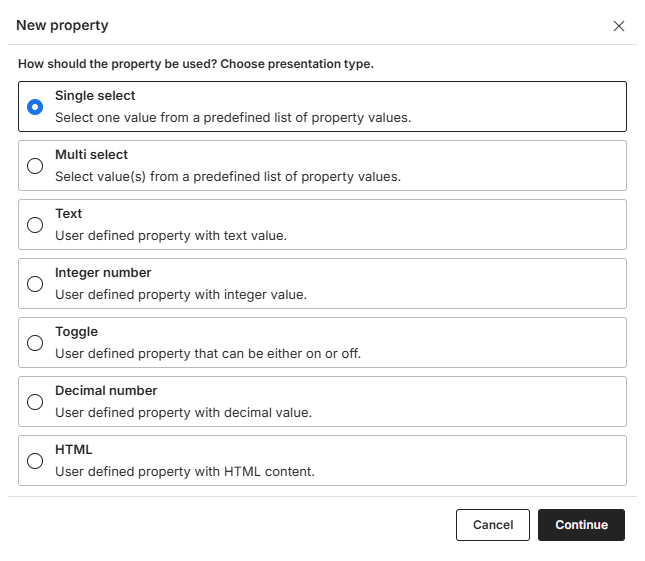
When you click + New property, you are first prompted to choose how the property should be used and presented. Because different product attributes require different types of data, you must select a Field type.
The available types include:
- Single select: The user selects only one value from a predefined list (e.g., Material: Cotton).
- Multi select: The user can select multiple values from a predefined list (e.g., Great with: Milk, Sugar).
- Text: A user-defined property allowing free-text input.
- Integer number: A user-defined property strictly for whole numbers (e.g., Number of pages).
- Toggle: A simple on/off switch for binary attributes.
- Decimal number: A user-defined property for numbers containing decimals (e.g., Weight).
- HTML: A user-defined property that supports rich HTML formatting.
Select the appropriate type and click Continue to proceed to the Detail View.
3. Property Detail View
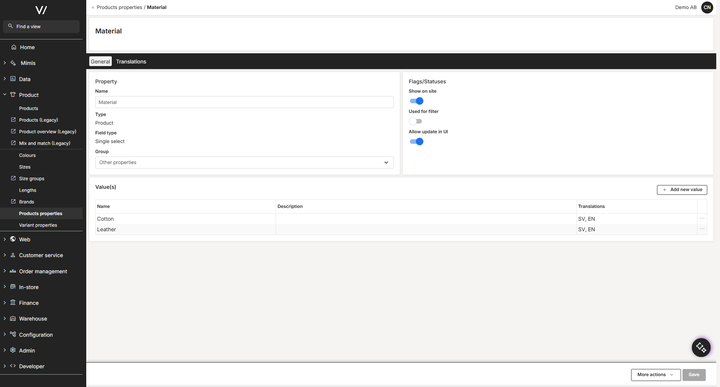
When creating a new property or editing an existing one, you will work within the Detail View. This view is divided into two main tabs: General and Translations.
The General Tab
This is where the core settings of the property are established.
- Property details: Enter the Name of the property and assign it to a Group from the dropdown menu to keep your list view organized.
- Flags/Statuses: Use the toggles to control the property's behavior (e.g., Show on site, Used for filter, Allow update in UI).
- Value(s): If you selected a "Single select" or "Multi select" field type, this section is where you define the available options. Click + Add new value to create choices (e.g., "Cotton", "Leather").
The translations tab
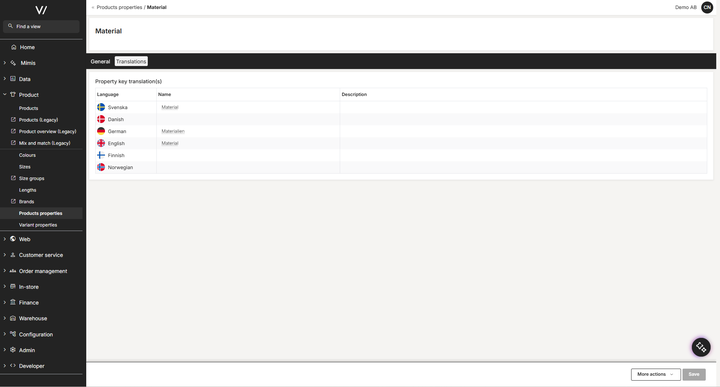
To ensure your storefront supports multiple languages, use the Translations tab to localize the property.
- Property key translation: Here you can translate the main property Name and provide a Description for each active language in your environment.
- Value translations: To translate the predefined values you created on the General tab, click to edit a specific value row. This will open a detail view where you can switch between languages to enter the translated name and description for each value.
Once your property is fully configured, remember to click Save in the bottom right corner.
The translations tab
To ensure your storefront supports multiple languages, use the Translations tab to localize the property.
- Property key translation: Here you can translate the main property Name and provide a Description for each active language in your environment.
- Note on Value Translations: The predefined values you created on the General tab are translated back on the General tab by interacting with the specific value row.
Once your property is fully configured, remember to click Save in the bottom right corner.
Variant properties
In addition to standard product properties, you can also create variant properties. These are used when you need more granularity to define attributes for specific product variants rather than the entire product (for example, a specific material or pattern that only applies to the green version of a t-shirt).
The interface and process for creating and managing variant properties are exactly the same as standard product properties. You will use the identical list view, select from the same field types, and configure the detail and translation tabs in the exact same way.
To access and manage these, simply navigate to Product > Variant properties in the left-hand menu instead.