

Help Centre
Product workflow in the PIM
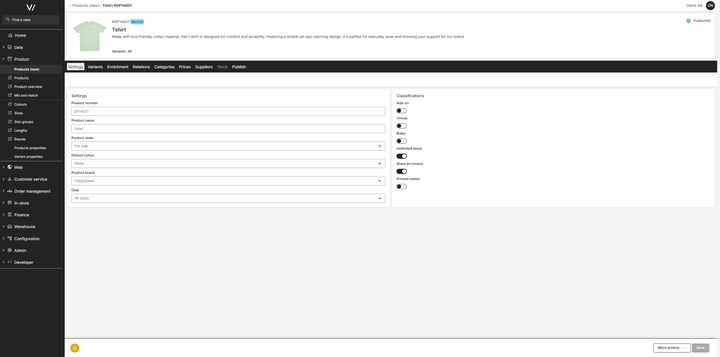
The PIM in Viskan Backoffice is designed around a clear left-to-right workflow. Each tab represents a specific area of product information. While not every tab needs to be completed for every product, moving through them in order helps ensure all essential information is added.
To make a product ready for sale, only the minimum required data must be in place:
a product number, a product name, at least one variant, a description (which includes the translated name, short and long descriptions, and a URL), an image, a category, a price, and finally the product must be published.
This page explains the structure, purpose, and typical use of each tab.
The Left-to-Right workflow
The general editing flow looks like this:
- Settings – Base product information and classification
- Variants – Add or adjust product variants
- Enrichment – Add content such as translations, media, and properties
- Relations – Connect matching products, recommendations, and add-ons
- Categories – Place the product in site categories
- Prices – Set or update pricing
- Suppliers – Add supplier information (if used)
- Stock – Manage stock levels and availability
- Publish – Finalize and make the product available for sale
Each section below describes the purpose of its tab.

Settings
The Settings tab contains the core product information, such as:
- Product number
- Product name
- Product state
- Default color
- Product brand
- Club - Groups products and help determine how subscriptions and orders are handled.
As well as different classifications like:
- Add-on – Product can be added as an optional complement
- Virtual – No physical stock required (e.g., Mix & Match, Lookbook)
- Bulky – Large/oversized product that may require special handling
- Unlimited stock – Stock is not tracked; product is always available
- Show on invoice – Controls if the product appears on customer invoices
- Printed matter – Flags the product as printed materials
These classifications help control logistics, stock behavior, checkout behavior, and how the product is processed.

Variants
The Variants tab lists all variants for the product. Every product in the PIM has at least one variant, and some products may have multiple variant attributes configured (for example size, color, or length). Depending on the setup, a product may use one, two, or all three attributes.
In this tab you can:
- Add additional variants
- Remove variants
- Edit variant-specific information
Variant-specific information include:
- EAN
- Pluno
- Width, height, length, volume, weight
- Variant status such as "for sale", "planned", "Discontinued" or "Inactive"
The Variants tab is central for managing the detailed specifications and lifecycle of each variant within a product.

Enrichment
The Enrichment tab contains all content and descriptive information used to present the product to customers. This includes product text, images, and product properties. These elements are essential for creating a complete and informative product page.
The Enrichment tab is divided into three sub-tabs:

Description
Used to manage all product text.
Here you can:
- Add and edit descriptions in multiple languages

Media
Used to manage the product’s images.
Here you can:
- Upload images
- Drag and drop multiple files at once
- Automatically connect images to the correct slots (depending on your naming conventions)
- Replace existing images

Properties
The Properties area is split into two sub-tabs — Properties and Variant properties.
Both work in the same way, but they apply to different levels of the product:
- Properties → applies to the entire product
- Variant properties → applies to individual variants
In these sub-tabs you can:
- Add or remove properties
- Ensure each product or variant has the correct data and translation


Relations
The Relations tab contains several sub-tabs, each representing a different type of product relation.
All relation types are configured in the same way, the UI and workflow are identical, but each sub-tab controls where the related products appear on the site.
The available relation types are:
- Matching products – Products that complement each other.
- Also bought – Products often purchased together.
- Recommendations – General product suggestions.
- Recommendations in cart – Suggestions displayed in the shopping cart.
- Prepacked – Used for predefined product combinations or sets.
- Add-ons – Optional accessories or supplementary items. (Add-ons differ slightly from other relation types because they can be grouped. You can create and name groups to organize different sets of add-ons.)
These relations help define how products are linked and presented to customers.

Categories
The Categories tab is the control center for where your product appears in the webstore hierarchy. Here, you connect the product to specific nodes in the category tree (e.g., Men > T-shirts), ensuring customers can find it in the correct locations on the site.
Beyond simple placement, this tab allows you to customize how the product variants are displayed within each specific category.
Key features & settings:
- Connected - To add the product to a specific category, simply check the box in the Connected column next to the desired category name. You can use the search bar at the top to quickly find specific categories within the tree.
- Split by colour (Grid display) - This setting determines how the product appears in the product listing (PLP) on the website. Enabled: If the category is set to "Split by colour," every color variant of this product will be listed as a separate card in the grid (e.g., Red T-shirt, Blue T-shirt, Green T-shirt all appear separately). Disabled: The product will appear as a single item, regardless of how many colors are available.
- Default colour - Select which specific variant image should represent the product in the category grid when the product is not split by color.
- Colours in list (Variant filtering) - You have granular control over which specific variants appear in each category. By using the Colours in list dropdown, you can include or exclude specific colors. Example: If you are connecting a T-shirt to a "Black Week" category, you might want to show all colors, but for a seasonal "Summer" category, you might choose to exclude dark colors like Black or Navy.
- Scheduling (Published From/To) - You can schedule when a product should appear or disappear from a specific category by setting dates in the Published from and Published to columns. This is ideal for limited-time campaigns or seasonal collections.

Prices
The Prices tab is the central hub for managing the commercial data of your product. Here, you define how much your product costs across different markets, currencies, and customer groups.
This view handles the complexity of global sales by allowing you to set specific prices for every variant (size/color/attribute3) against different Price lists (e.g., Retail, B2B, VIP) and Countries, ensuring the correct currency and VAT rates are applied.
Multi-Market Pricing
The main table displays a detailed breakdown of prices organized by variant and market. By reviewing the columns, you can quickly identify which price list a specific row belongs to (such as "Standard" or "B2B") alongside the associated country and currency settings. This structure allows you to maintain distinct pricing strategies simultaneously—for example, having a Swedish price of 199 SEK active alongside a Euro price of €19.90.
Adding and aditing prices
Managing individual prices is designed for flexibility. To introduce a new price entry for a specific variant and market combination, utilize the + Add price button located in the top right corner. For existing entries, the table supports inline editing; simply click directly into any field, such as the Sales price or Original price, to make immediate adjustments to the values without leaving the page.
Bulk Update Capability
To improve efficiency, particularly for products with numerous variants like size ranges, the system offers a powerful bulk update feature. By selecting multiple rows via the checkboxes on the left, you can trigger the Bulk update values window. Entering a value in this modal applies the change to all selected rows instantly. This is the ideal tool for tasks such as setting a base price across all sizes XS–XXL at once, rather than typing the same price manually for every row.
Price Types and visibility
The system supports various price types to accommodate your sales strategy. The Sales price determines what the customer actually pays in the store, while the Original price is primarily used for reference or to calculate and display discounts. You can also populate Recommended or Comparison prices to display MSRP (Manufacturer's Suggested Retail Price) or competitor data. Finally, the Active toggle provides control over availability; disabling this switch allows you to hide a specific variant/price combination from a market without permanently deleting the underlying data.

Suppliers
The Suppliers tab allows you to manage the procurement and sourcing details for your product. While the Prices tab handles what you charge your customers, this tab handles your relationship with vendors. Here, you connect your internal variants (such as specific colors or sizes) to the external manufacturers or distributors that supply them.
Connecting and managing suppliers
To link a product to a vendor, use the + Connect supplier(s) button located in the top right corner. Once connected, the table lists every variant alongside its assigned supplier (e.g., "Factory 1"). This structure is particularly useful if you source different sizes or colors from different vendors, as it allows you to map specific SKUs to specific production partners.
Supplier product numbers
Effective supply chain management often requires tracking how your vendors identify your products. The Suppliers product number column allows you to input the specific SKU or ID code that the supplier uses for each item. This ensures that when purchase orders are generated, they use the correct terminology and referencing for the vendor, reducing the risk of fulfillment errors.
Purchase prices
This tab is also where you define the cost of goods. The Purchase price column displays the amount your company pays to acquire each specific variant. Just like in the Prices tab, you can click directly into these fields to perform inline edits. Keeping this data accurate is essential for calculating margins and tracking inventory value within the system.

Stock
The Stock tab provides a comprehensive real-time view of your inventory levels across your entire logistics network. It allows you to track the exact quantity of each product variant available in every specific storage location, from central distribution centers to physical store stockrooms. This granular visibility is essential for preventing overselling and ensuring efficient order fulfillment.
Multi-Location management
The main table is organized to handle multi-warehouse operations. Instead of a single total, stock balances are broken down by specific variant and Warehouse. This means you will see separate rows for the exact same item (e.g., a Black L/XL Apron) depending on whether it is located in the "Boråsbutikens Lager" or the "Helsinki Shop." This structure helps you identify exactly where your goods are physically located at any given moment.
Understanding stock states
To give you an accurate picture of what can actually be sold, the tab divides inventory into specific statuses. The Physical column shows the total count of items currently sitting on the shelf. However, the system also tracks Reserved items—stock that is allocated to existing orders but hasn't shipped yet. The most critical figure for sales is the Available column, which calculates the net quantity free to be sold (Physical minus Reserved and Processing).
Incoming Inventory
Beyond current on-hand stock, this view helps you plan for future replenishment. The Incoming columns track inventory that has been ordered from suppliers but has not yet arrived at the warehouse. The system distinguishes between incoming stock that is already reserved for backorders and Incoming available stock that can be promised to new customers, allowing for effective management of pre-sales.
Adding and configuring stock
To initialize inventory records for new variants or locations, use the + Add new stock balances button in the top right. Additionally, the far-right columns of the table allow you to set purchasing rules. By configuring fields like Purchase order limit and Minimal order quantity, you can establish guidelines for replenishment, ensuring you maintain optimal stock levels without overstocking.

Publish
The Publish tab acts as the final control switch for your product's presence on the webstore. While other tabs manage data, prices, and stock, this view determines whether the product is actually live and viewable by customers. It separates the general product activation from specific variant availability, giving you flexibility in how you launch products.
Understanding date published
It is important to distinguish between the Date published field and actual site visibility. As highlighted in the system, this date is used primarily for merchandising logic—specifically, to determine whether a product receives a "Brand New" status or tag on the website. Setting a future date here does not hide the product; the product will remain visible on the site as long as the main Published toggle is active and other data requirements are met, independent of the date entered here.
Granular variant control
The Variants table provides granular control over which specific versions of the product are active. Even if the main product header is published, you can use the individual Published toggles in the table to hide specific SKUs. This feature is particularly useful if you want to launch a product line but need to temporarily withhold specific options—for example, if a specific size or color (like "109 Jam L/XL") is not yet ready for sale—without taking down the entire product page.