

Help Centre
How to configure a Multipackage
Sometimes you want to sell products in bulk quantities—like a 6-pack of soda, a box of 100 coffee filters, or a 3-pack of socks—without managing separate inventory for the "singles" and the "packs."
The Multi package solves this by creating a unique product listing for the bulk set that is linked to the original single product. It acts like a "Copy product," but with a multiplier.
When a customer buys one "Multi package," the system automatically deducts the defined number of units from the original product's stock. This ensures you can sell the same physical items as singles or packs simultaneously without inventory discrepancies.
Why use a Multi package?
- Bulk selling: Ideal for consumables or small items (e.g., screws, filters, beverages) where customers often buy more than one.
- Inventory automation: You do not need to split stock physically. If you have 1,000 filters in stock, you can sell them as singles or as 100-packs; the system calculates the available stock for both automatically based on the single unit count.
- Pricing strategy: You can create a specific price for the "100-pack" that offers a volume discount compared to buying 100 singles.
Step 1: Create the Product and Basic Settings
The first step is to create the container for your bulk listing.
- Click "+ Create new product" in the top right corner of the product list.
- Select Multi package from the list of product types.
- Search for and select the Original product (the single unit) you want to package.
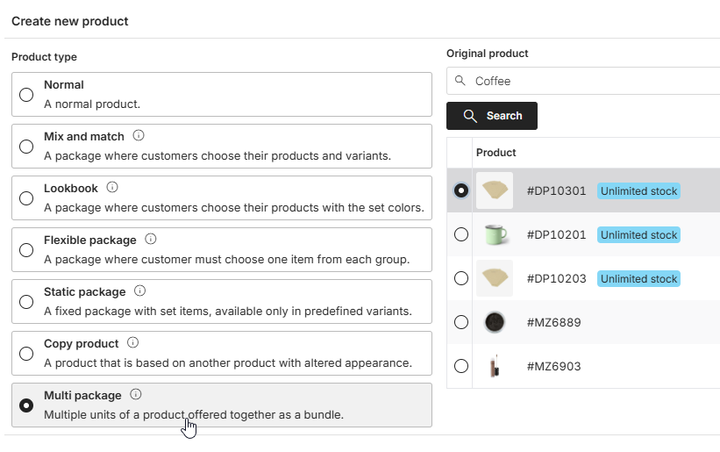
Once created, configure the specific tabs to differentiate this bulk package from the single unit.
- In the Settings tab. Assign a name and product number, and set the state to "Ready for sale".
- In the Variants tab. Usually, this is left as default since the variants are based on the original product.
- In the Enrichment tab. Upload an image that represents the bulk packaging (e.g., the full box) rather than the single item, and add a description highlighting the value of the pack.
- In the Categories tab. Assign the product to the relevant category.
- In the Prices tab. Set the specific price for this pack.
Step 2: Define the quantity
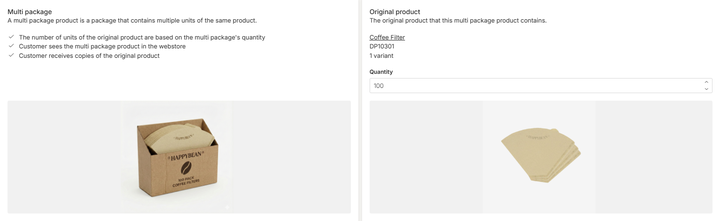
This is the technical step where you define how many units are in the pack. Navigate to the Package contents tab. Since you selected the source during creation, the link is established. Now you must define the multiplier.
- Locate the Quantity field under the Original product section.
- Enter the number of units contained in this package (e.g., 100).
- Review the logic: The interface shows you the Multi package (what the customer sees/buys) alongside the Original product (what is deducted from stock). Example: If you enter 100, buying one pack deducts 100 units from the single coffee filter inventory.
Step 3: Publish the Multi Package
Once the configuration is complete, navigate to the Publish tab. Review your data and toggle the status to "Published" to make the bulk pack live in your webstore.
See it in action
Want to see how a Multi package works for the visitor in the webstore? Visit our demo store to see how bulk options are presented. View Demo: Coffee Filter 100 pack