

Help Centre
Orders
Search
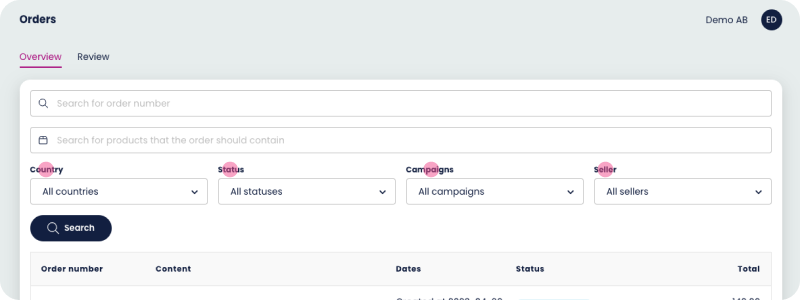
First search window that shows up is searching for an order number. Once you type in the order number, the order related to the order number will show up with the following fields: Order number, Content, Dates, Status and Total of the order. Second search window that shows up is searching for a specific product that contains in an order.
Filtering
Country filter
This allows you to filter orders by the country of origin. This can be useful for managing orders that require specific shipping or billing requirements, or for analyzing sales trends across different geographic regions.
Status filter
This allows you to filter orders by their current status in the fulfillment process, such as "All statuses", "Planned", "Placed", "Delivery created", “Party delivered”, “Delivered”, “Canceled”.. This can be useful for tracking the progress of orders and identifying any bottlenecks or delays in the fulfillment process.
Campaigns filter
This allows you to filter orders based on the marketing campaigns or promotions that were used to generate the order. This can be useful for tracking the effectiveness of different marketing channels and campaigns.
Seller filter
This allows you to filter orders based on the seller who fulfilled the order. This can be useful for managing orders that involve multiple suppliers or vendors, or for analyzing sales and profitability by vendor.
Results
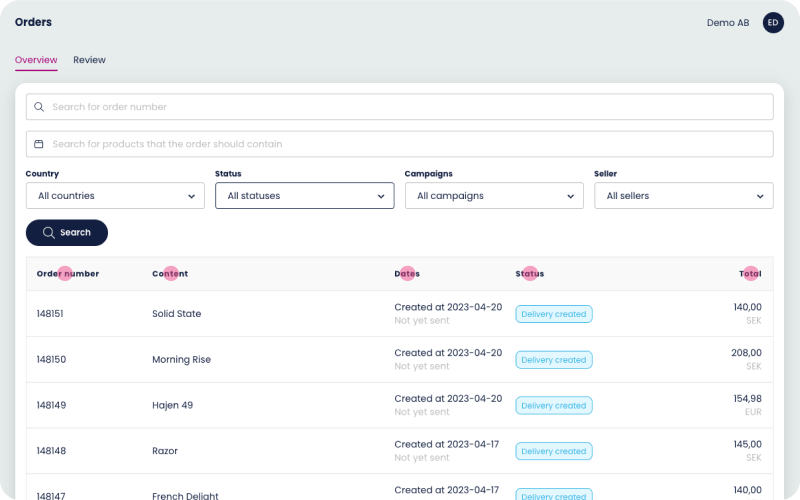
After searching for an order number, the system will display detailed information about the specific order, including:
Order number
This is the unique identifier assigned to the order and is used to track and manage the order throughout the fulfillment process. Next to the order number there can be a “repeat” icon - Which indicates if it’s an order connected to a subscription.
Content information
This includes details about the product or products included in the order, such as the product name.
Dates
This includes the date the order was placed
Order status
This provides an overview of where the order stands in the fulfillment process, such as whether it has been placed, canceled, or delivered etc. The status may also include any additional notes or comments related to the order.
Total
This is the total cost of the order, including the price of the product(s), any applicable taxes, shipping fees, and discounts.
Order page
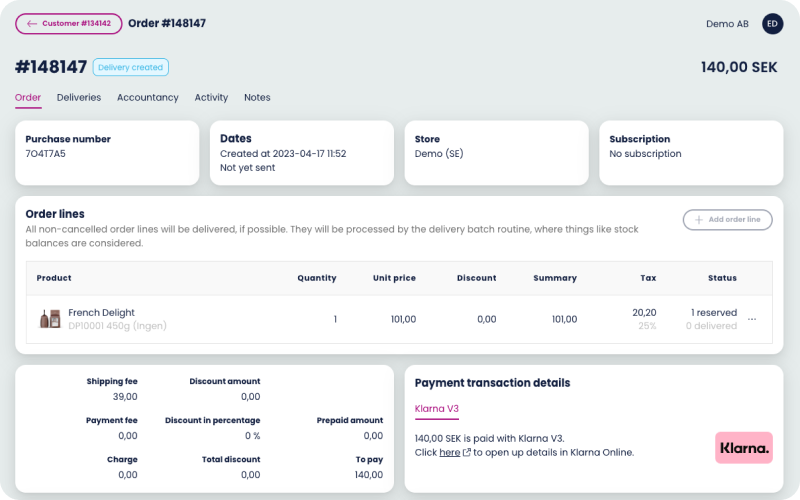
After clicking on an order you will get an overview of the initial order.
First view shows the first rows of information regarding the order. Purchase number, creation date, store and if it’s a subscription or not. You get a clear overview of what product that has been ordered. In this case below the delivery has already been created.
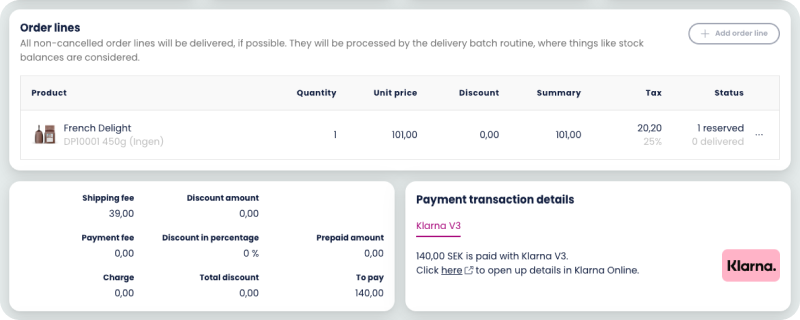
Under “Payment transaction details” you can click on the “here” link to open the order directly in the Klarna Portal.
If the status was “Created” then you would’ve been able to add a discount to the order in the form of only doing it on the orderrow or the head of the order (whole invoice). You can also add another order line if the customer for example forgot to buy an item and wants everything in one delivery.
Once you add a new order line you will get a popup of articles where you can filter “In stock” or search directly for the product:
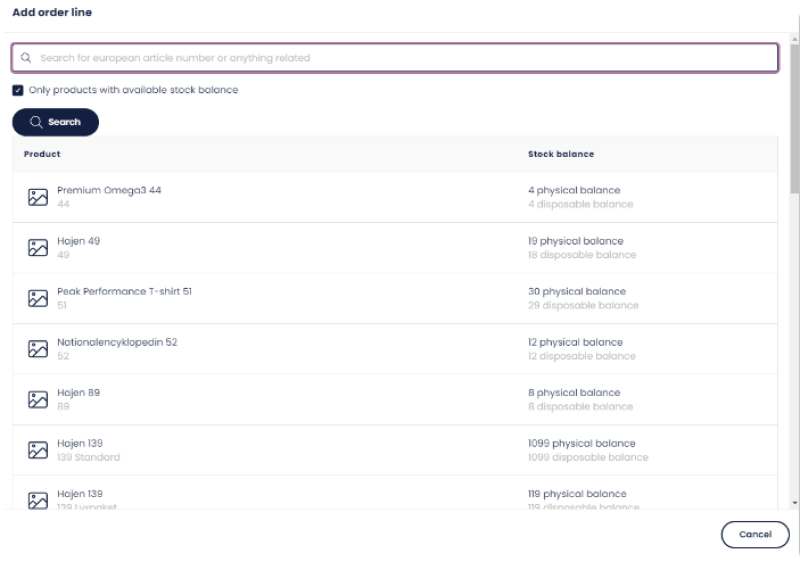
Once added you save it and the product has been added to a row in the order.
There’s also an option behind the three dots on the order line:
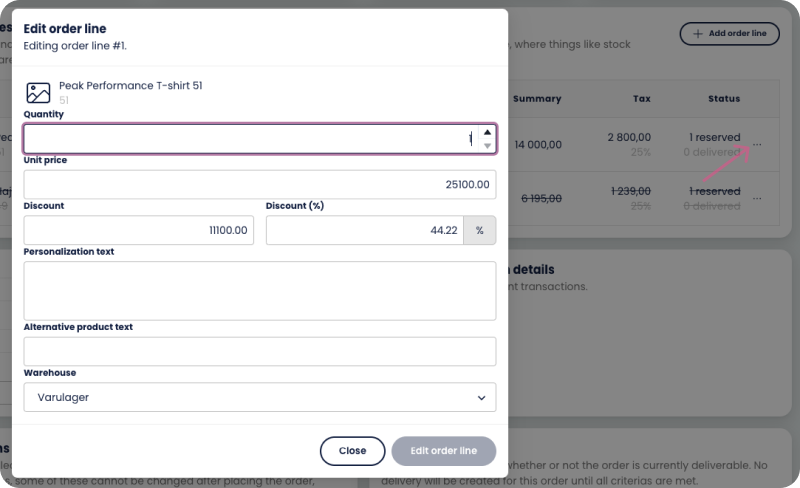
From here you can edit the quantity, unit price, add discount and other information like personalized text that can for example be used for engraving a product. Adding an alternative product text specifies a customized name of the product for this specific order. This will be used for example when printing the invoice and the delivery note.
Last but not least you can choose which warehouse to pick this product from, for example if the status of the product is in red and says 0 reserved due to 0 stock. You can swap to a warehouse that has the product.
Scrolling down on the same page you will find more information, as long as the order hasn’t had its delivery created you can change some of the selections below:
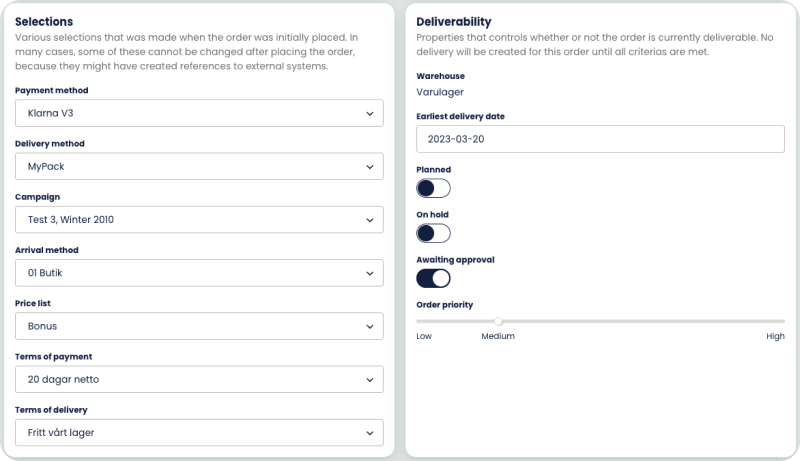
Further down on the page you’ll find information such as customer information:
You can add text to the delivery note or create a custom parcel label text if you so wish. The “Customer’s order number” row is an optional reference to this order that the customer has. For example, purchase order in your own system or order number that was imported from an external system.
Last but not least is the property information:
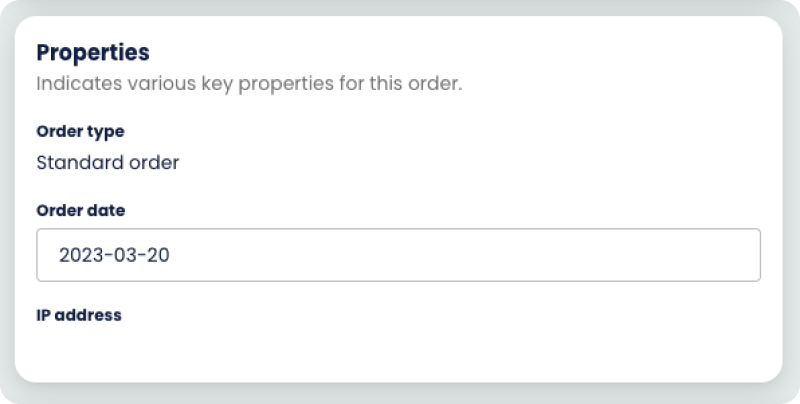
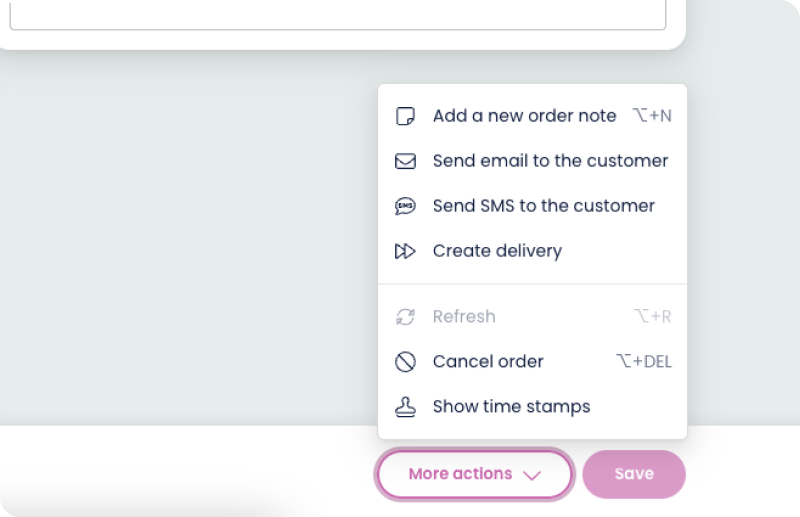
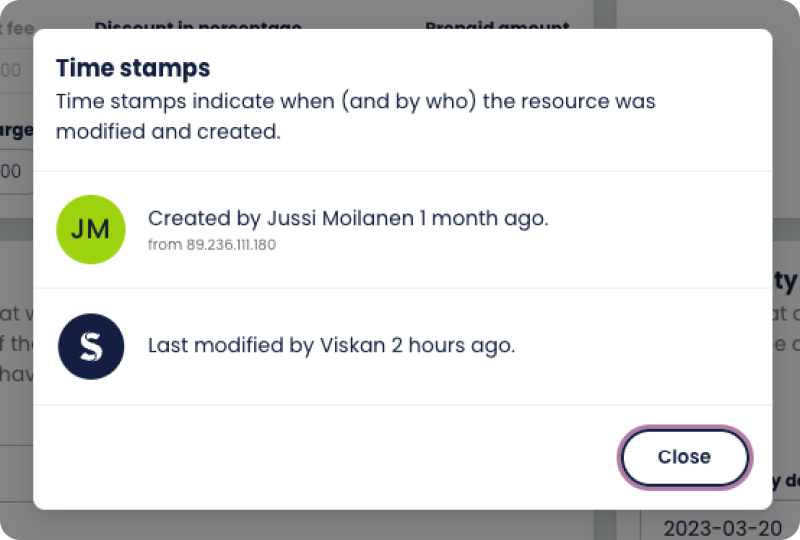
There are more things you can do on the order page, on the footer you have the option to either save changes you’ve done on the order or more actions, where you can basically add an order note. You can send an email with templates connected to order, you can send SMS to the customer regarding this order but then you’ll need to have that implemented from a third party named “LinkMobility '', you can choose to create the delivery directly for this customer or cancel the order. “Show timestamps” gives you information about when certain events have been created in this order.
Other views
You might’ve seen the other views such as these below when you’ve clicked on an order:

Deliveries
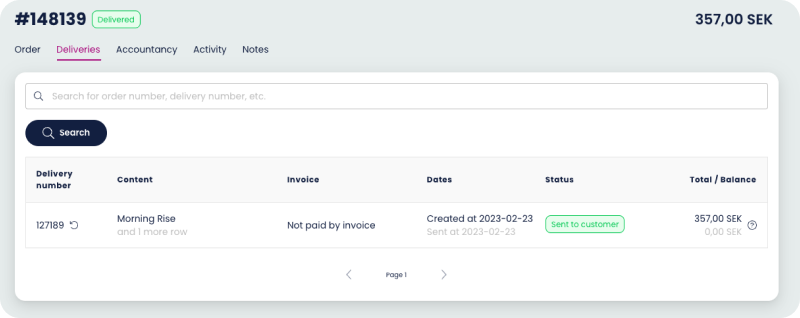
To have something showing up under “Deliveries” the order needs to have the status “Delivery created”, “Partly delivered” or “Delivered”.
Here you get a clear overview of the delivery number and the same information as the order view and also if it’s been paid with an invoice or not.
Due date
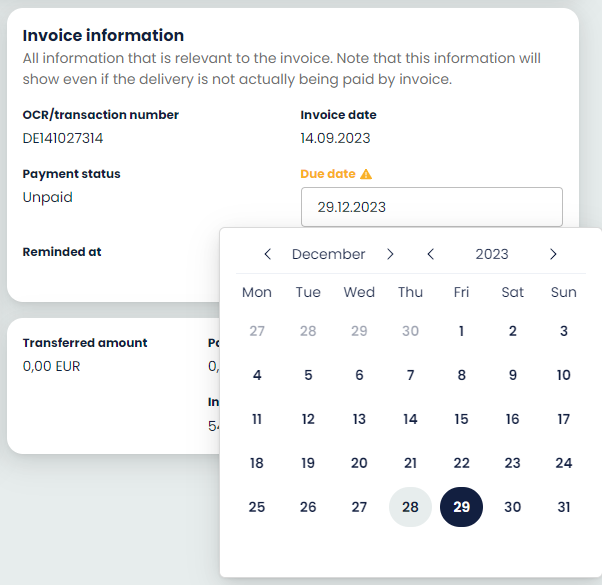
How to change due date:
When you choose a delivery you can access more details of that particular delivery and, for example, change the due date. After changing the date push "Save" at the bottom of the page.
Accountancy
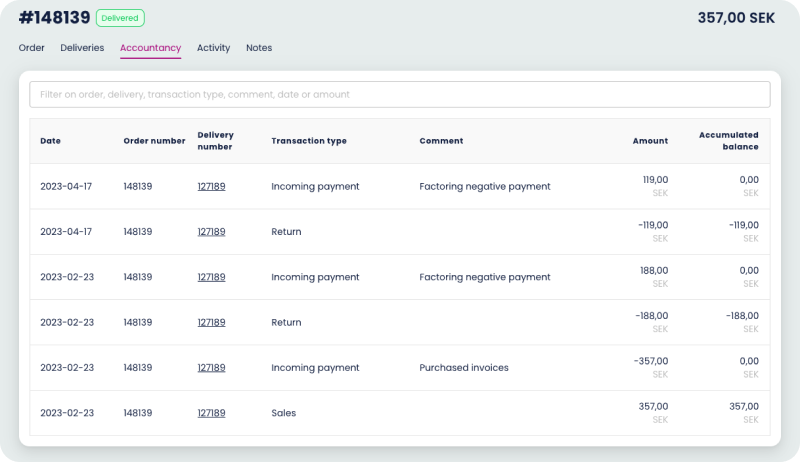
The "Accountancy" section typically contains information related to financial transactions associated with orders. Here are some of the key types of information that can be found under "Accountancy", if you wish to filter out a specific order number or delivery number to see specific accountancy information that can also be done:
Invoices
This includes details about invoices generated for orders, such as the invoice number, date, and amount due.
Payments
This includes details about payments made by customers, such as the payment method, date, and amount paid.
Refunds
This includes details about refunds issued to customers, such as the refund amount, reason for the refund, and date issued.
There is more information that you can get from this view, such as information on this picture:
Activity
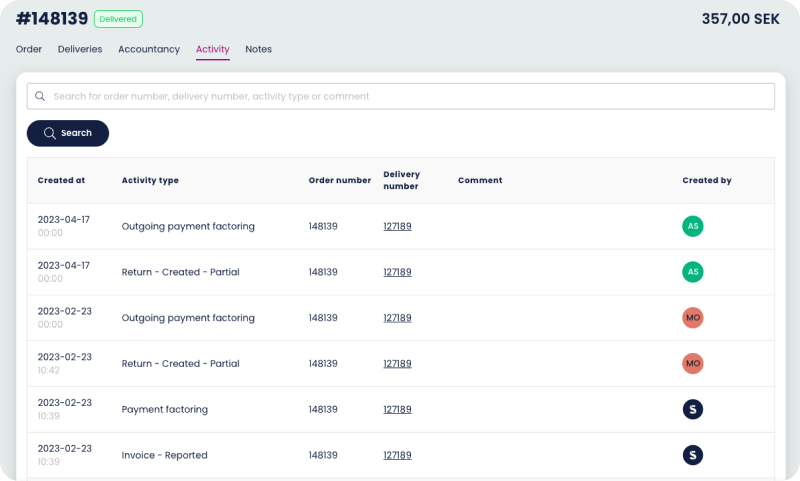
The activity view has sort of the same functionality as the accountancy page. Only difference here is that not much is related to economics. There is information regarding different activities that have been done in this order.
Notes
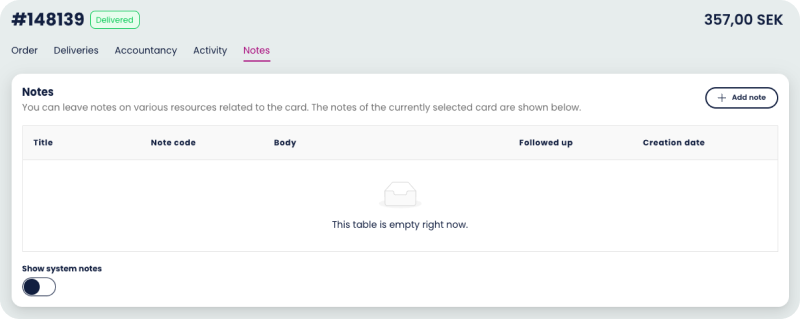
Here you can add specific notes regarding the order
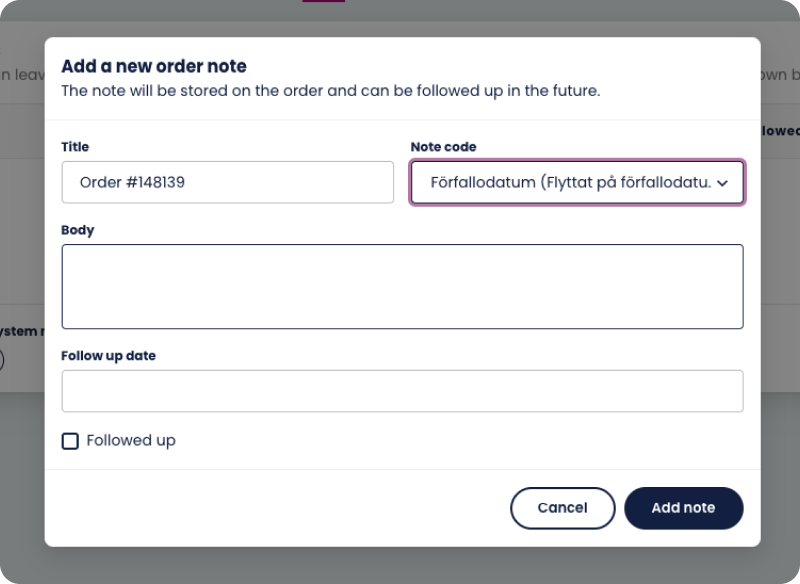
If you wish to add a note you simply click on the “Add note” button. Here it’s mandatory to add a “note code” and write a specific text under the body. This is more information for yourself and your colleagues.
Review
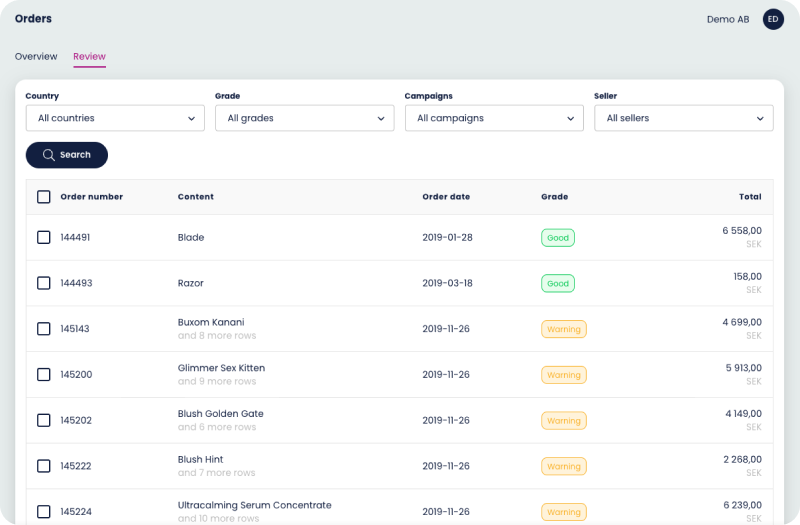
Under the review page you can review orders, you can again filter it by country but “Grade” has replaced “Status” - There are 3 different grades, “Good”, “Warning”, “Severe Warning”. Which indicates if there’s something wrong with the order. For example the customer hasn’t paid its invoices or reached its credit limit.
You can select a specific order or all the orders and approve them, once you approve them they will be ready to be delivered.
Still haven’t found what you’re looking for?
